
Changing Optible's Assessment With Workflows
In this article
In this article group
Workflows let you choose which checks Optible runs on an application, and in what order. Every grant starts with a workflow called Optible assessment that runs the same assessment Optible has always run, so nothing changes until you edit it.
Workflows is in early access. If you can't see it under your grant's settings, contact Optible and we'll turn it on for your organisation.
Where to find it
Open the grant.
Go to Settings.
Select Workflows, then open Optible assessment.
You need permission to edit the grant's settings to change a workflow.
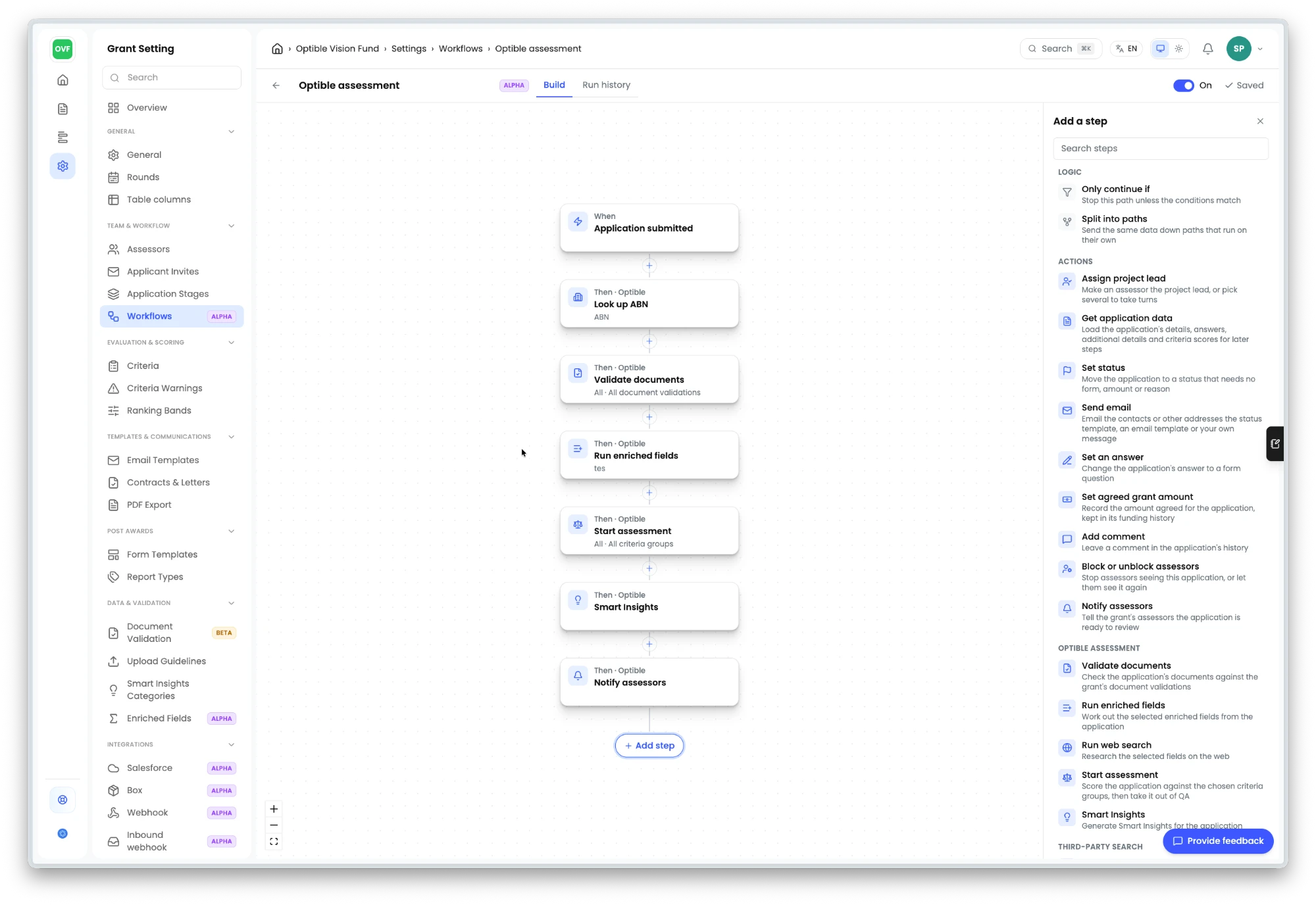
What the default workflow does
It runs when an application is submitted, either straight away or after being saved as a draft. Each application is assessed once. The steps, in order:
Look up ABN, if your form asks for an ABN. Optible checks the number against the Australian Business Register.
Validate documents, if the grant has document validations.
Run enriched fields and Run web search, for the grant's enriched fields in their usual order.
Start assessment, which scores the application against your criteria groups and moves it out of QA.
Smart Insights.
Notify assessors, which tells the grant's assessors the application is ready to review.
Changing it
Select a step to change what it does. For example, choose which document validations or criteria groups it covers, or whether scoring uses the organisation lookups. Select + between two steps to add one there. To leave a stage out, remove its step. Your changes apply to applications submitted after you select Save.
Some useful changes:
Move an enriched field or web search to run after scoring instead of before it.
Send the applicant an email once scoring is done.
Add Check board against sanctions lists if your grant screens board members. The default workflow doesn't include it.
Triggers
A workflow starts on one trigger. Two are useful for the assessment:
Application submitted: an application is submitted for the first time, new or from a draft. This is the one the default workflow uses.
Application draft created: an applicant starts an application. Use it to send a welcome email.
What to expect
Steps run one after another, so the assessment takes about as long as all its steps added together.
If an ABN lookup finds no record, or the register is unavailable, Optible adds a warning to the application and carries on with the other steps.
Each run is listed under Run history on the workflow, with what every step received and gave back. The application's history links to its run.
Archiving a workflow stops it straight away. You can still open its runs from Archived and restore it later.
If you turn off or archive the only workflow that assesses a grant, Optible goes back to its built-in assessment for new submissions.
For how scoring itself works, see How Assessment Works.