
Form Templates
Form Templates are reusable form structures for Applications or Progress Reports.
1. Add a Form Template

Click the plus button, then fill in:
Template Description
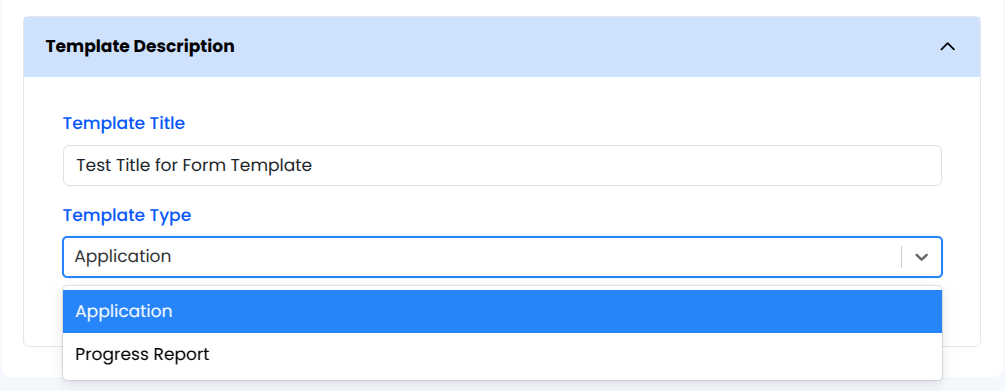
- Template Title: Name for the form template.
- Template Type: Application or Progress Report.
Form Builder
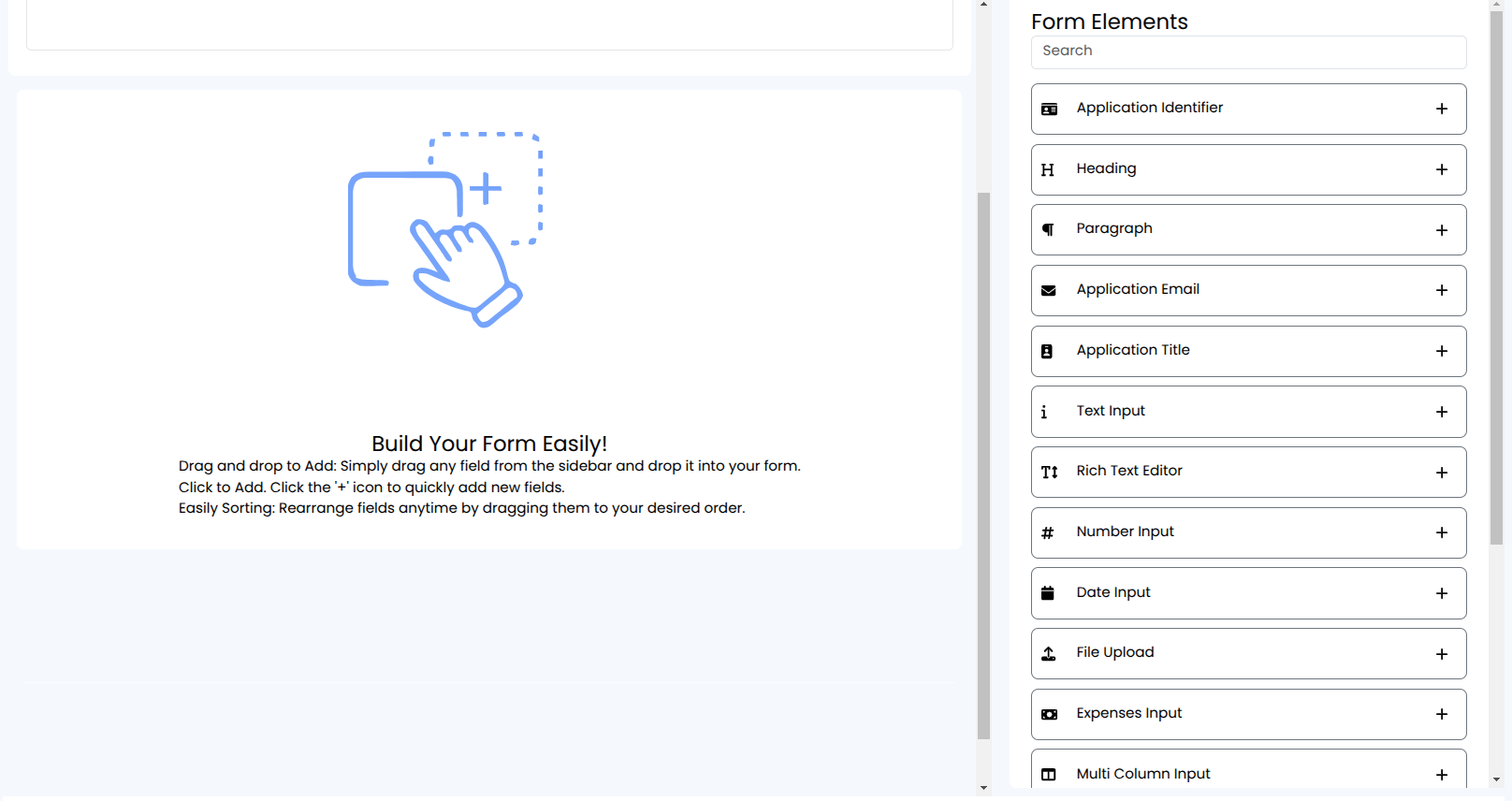
- Drag and drop elements from the sidebar to build the form.
- Available elements include: Application Email, Application Title, Text Input, Rich Text Editor, Number Input, Date Input, File Upload, Expenses Input, Multi Column Input, List Input, radio and checkbox groups, and Page Breaker.
- Section groups related questions into a titled block you can show or hide as one. Financial Grid and Major Donor Grid collect figures across several years.
- Click Save when done.
Questions, sections and whole pages can each be given conditions so applicants only see what applies to them. See Sections and Conditional Questions and The Financial Grid Field.
2. Form Template List
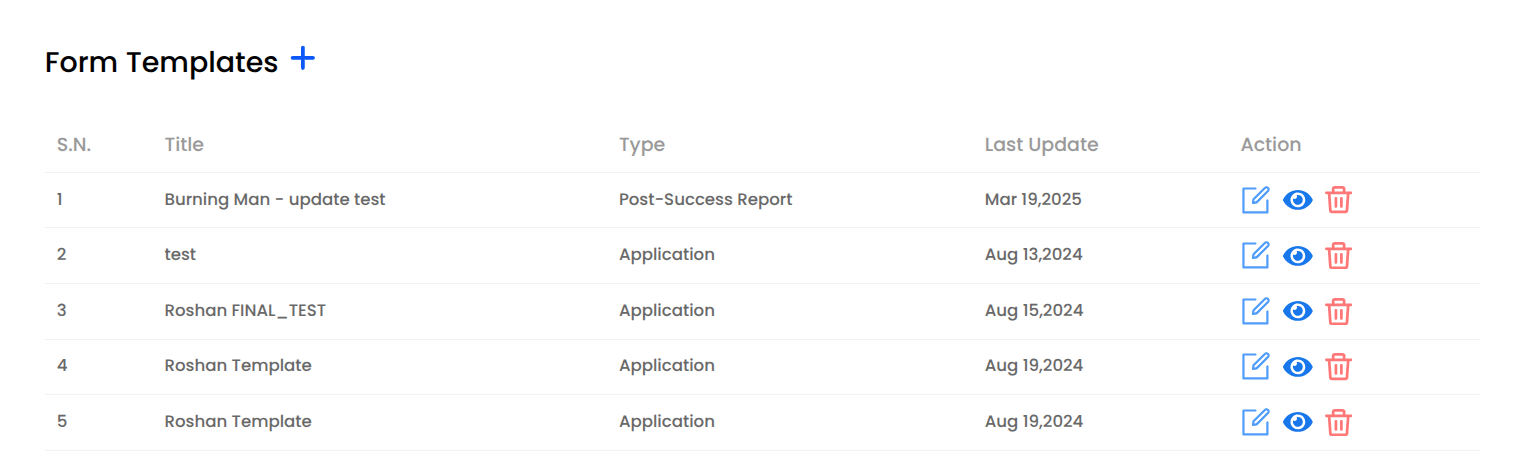
Displays Title, Type, Last Updated, and Actions (Edit / View / Delete).
View opens a read-only preview. It shows layout and wording, but because no field can be typed into, conditional content stays as it starts and the submit step does not appear. To test conditional logic, submit a test application through the real form.