
Post-Award Review
After a grant is awarded, grantees send you evidence of how the money is being spent: invoices, receipts, statements and reports. Optible can check each document against what you approved, show you where it found each figure, and let you send anything that needs fixing back to the grantee. You still make every decision.
The steps below work for any post-award document. Each one ends with an example from a demo grant, where a grantee claims against an approved budget line of Football equipment, $5,000 with an invoice totalling $6,850.
1. Set up a review stage
Give your reviewers a form to record their decision, and attach it to a stage in your workflow.
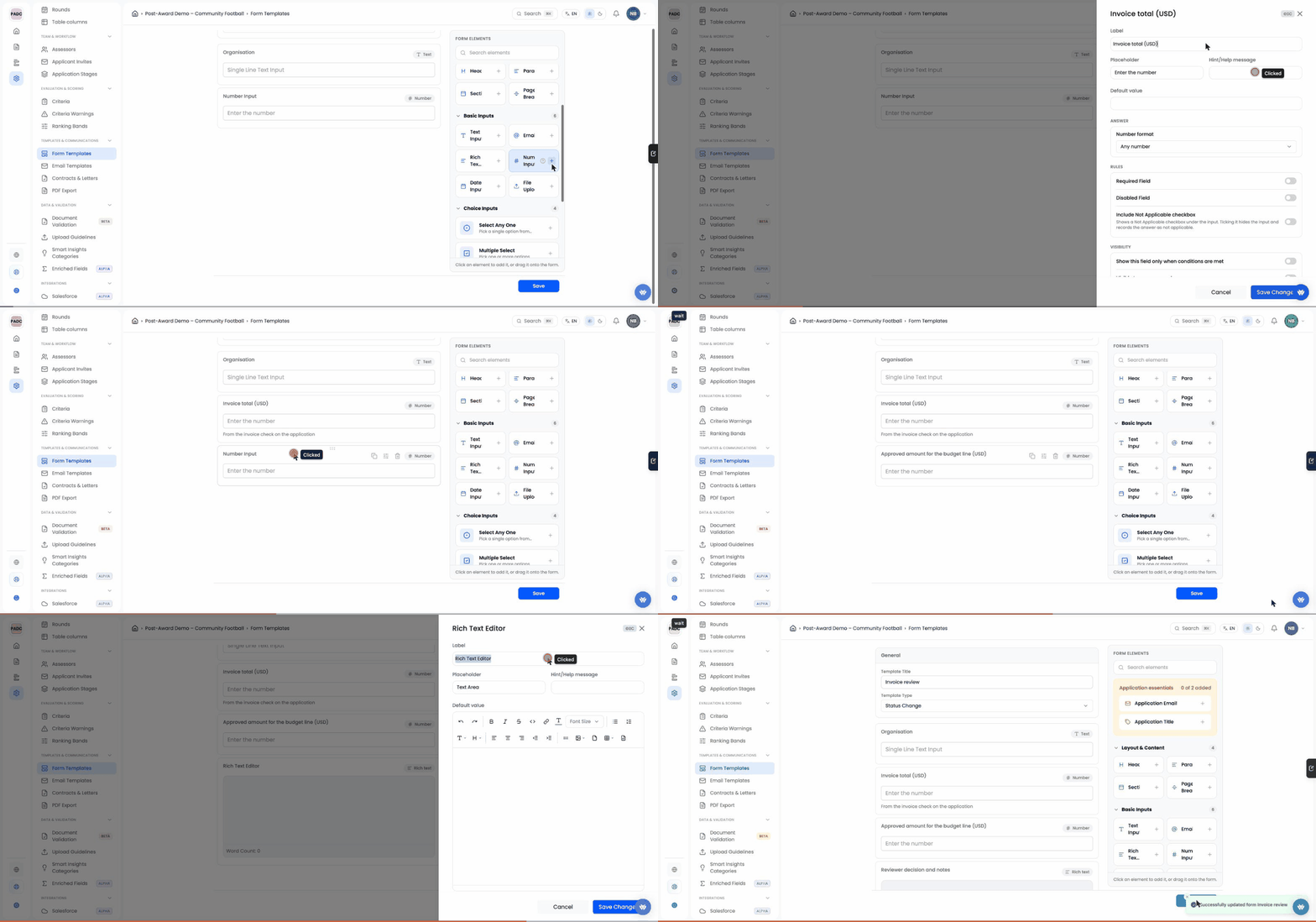
In your grant's settings, open Form Templates and build the review form. Set Form Type to Status Change, or it won't show up in the next step.
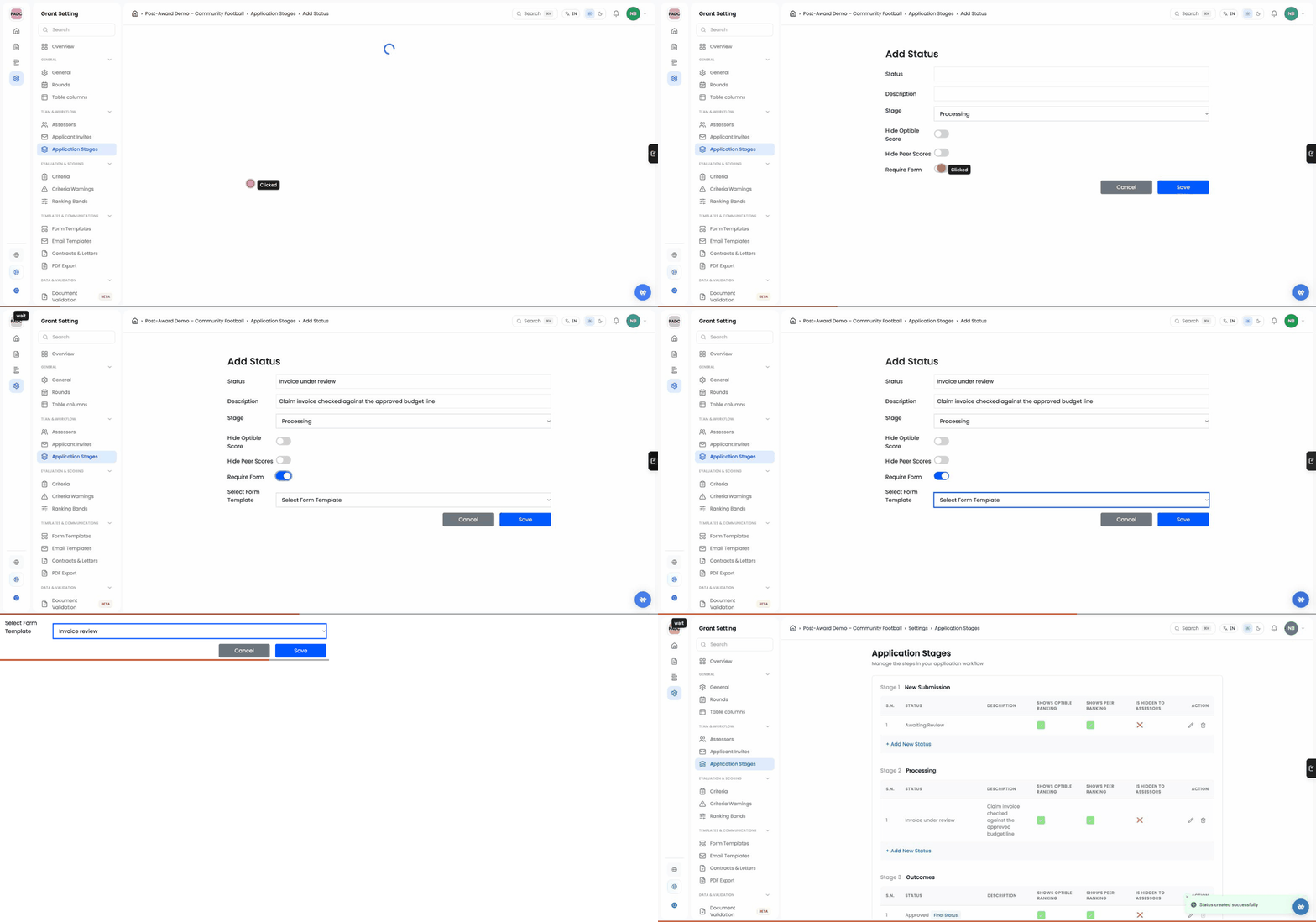
Open Application Stages and click + Add New Status.
Turn on Require Form and choose your review form under Select Form Template.
A submission can't move on from this stage until someone has filled in the form.
Example: the program team built a short form with the invoice total, the approved amount and a box for the reviewer's decision, then added an "Invoice under review" status that requires it.
2. Write the checks
Each check is a plain sentence saying what the document should show.
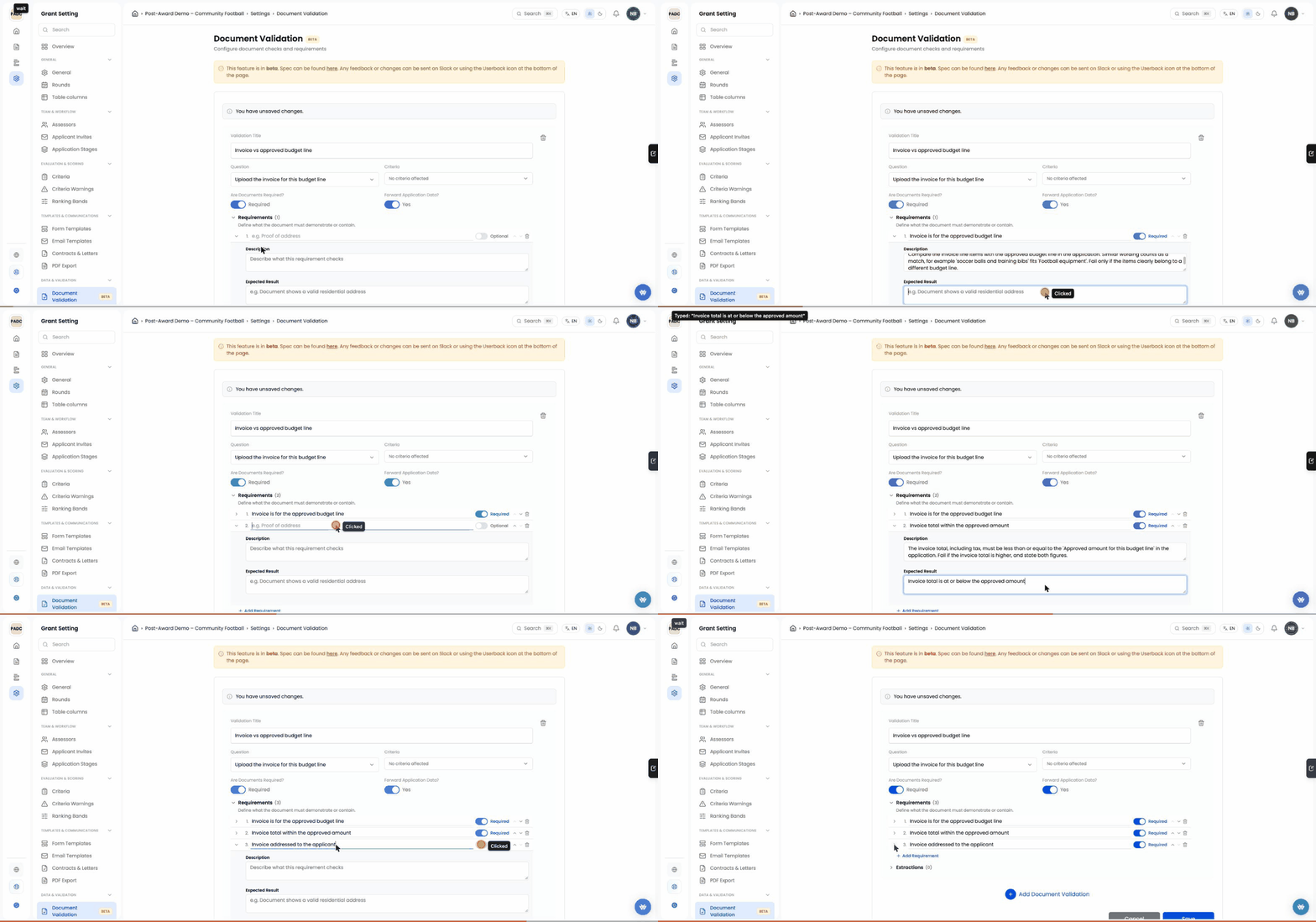
In your grant's settings, open Document Validation and click Add Document Validation.
Choose the question where grantees upload the document.
Click Add Requirement for each check, and fill in the Requirement, a Description and the Expected Result.
Example: three checks on the invoice. The items belong to the approved budget line, the total is within the approved amount, and the invoice is made out to the grantee.
3. Read the results
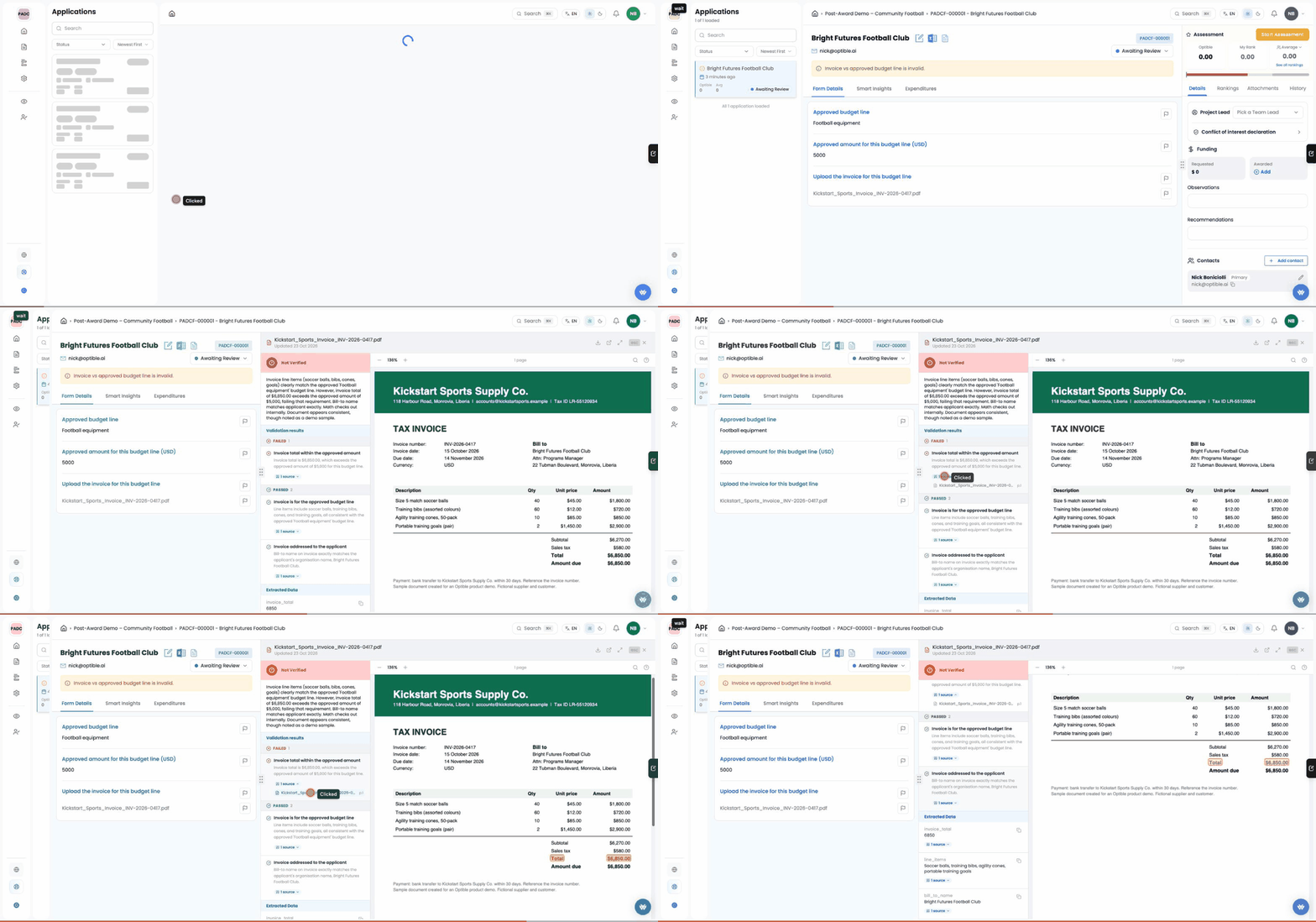
When a grantee uploads a document, Optible runs each check and marks it as passed, failed or needing review. Click a result to open the document at the passage Optible relied on, so you can check its reading yourself.
Example: the total check failed, because $6,850 is more than the $5,000 approved. The other two passed: the items are football equipment, and the invoice is addressed to the grantee.
4. Ask the grantee to fix it
If something needs correcting, you can send just that item back rather than reopening the whole submission.
Click the flag next to the item and choose Flag for correction.
Under What needs correcting?, tell the grantee what to change.
Click Send back to applicant, then Compose email, then Send to applicant.
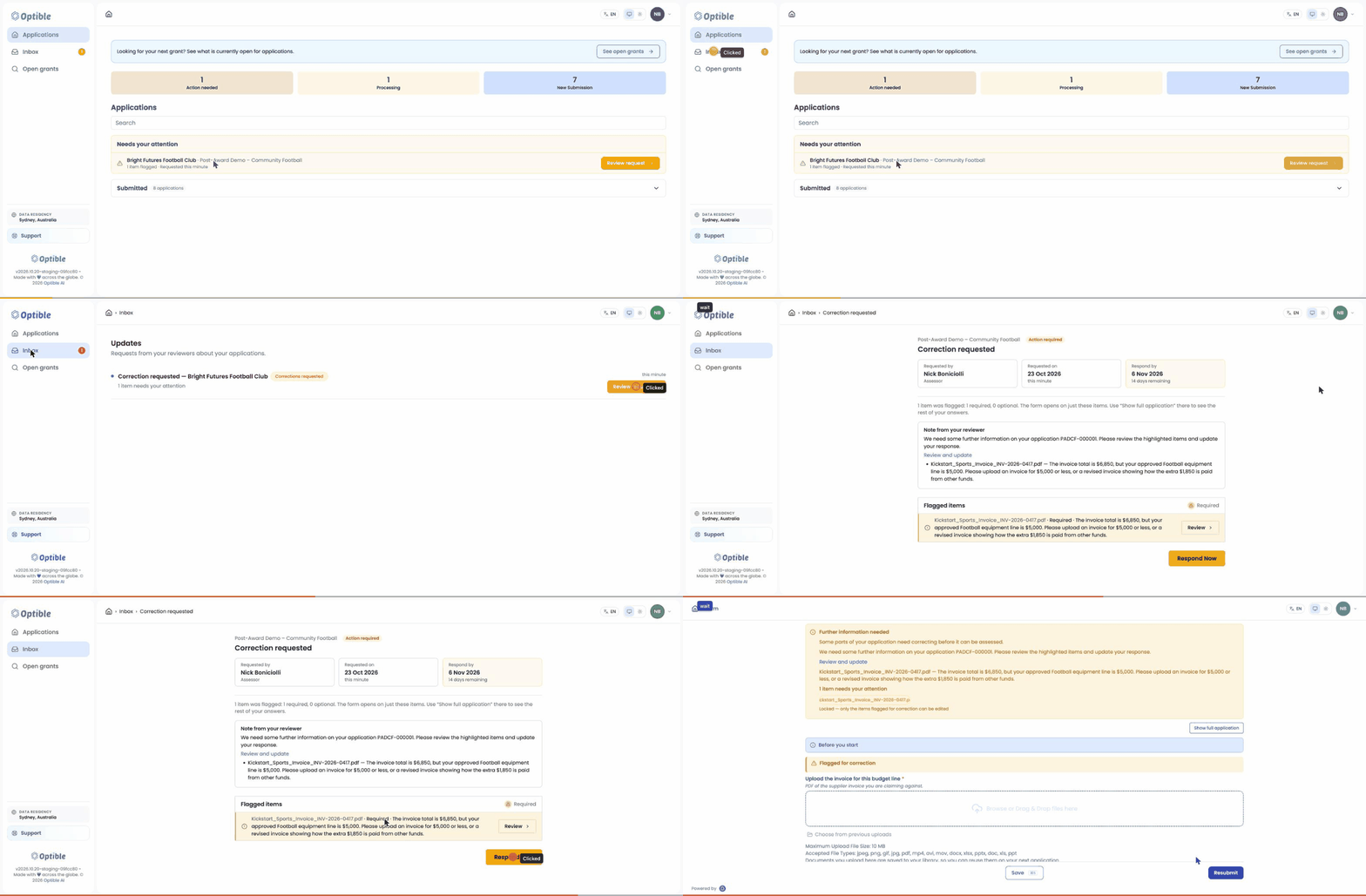
The grantee sees "Further information needed" in their portal, with your note beside the flagged item. They can change that item and nothing else. When they resubmit, it comes back to you to accept.
Example: the reviewer flagged the invoice with "The invoice total is $6,850 but your approved line is $5,000. Please upload an invoice for $5,000 or less, or show how the extra $1,850 is paid from other funds."
Sending back for correction is still being rolled out. If you don't see Flag for correction, ask your Optible contact to turn it on.
5. Record the decision
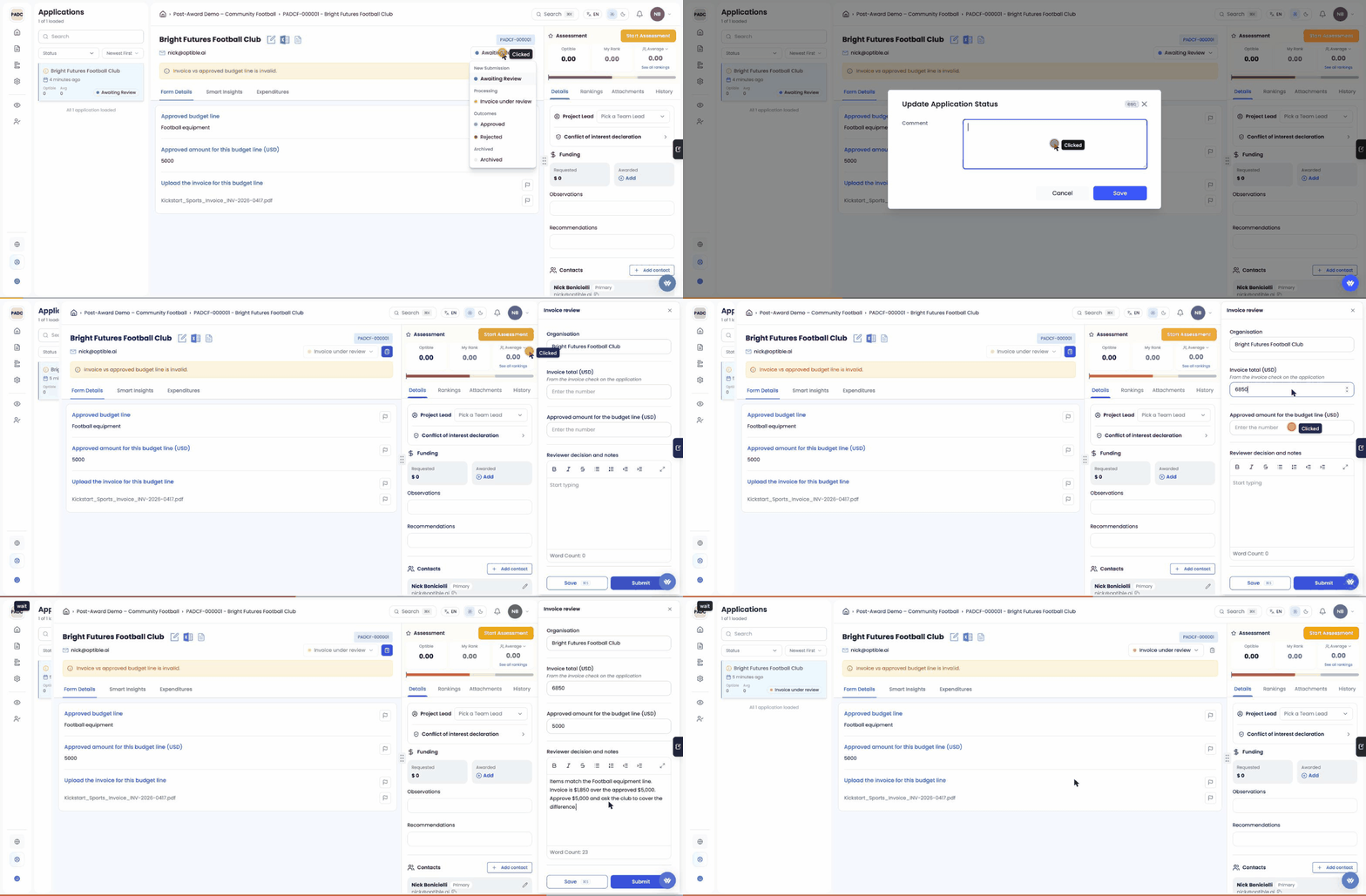
Move the submission to your review stage using the status menu at the top of the page.
Open the review form from the button beside the status menu.
Fill it in and click Submit.
Status changes and form submissions are recorded in the History tab.
Example: the reviewer approved $5,000 and asked the club to cover the remaining $1,850.
For how scheduled reports work after award, see Progress Reports.
The club, supplier and invoice in the examples are made up.