
Keeping Track of Your Tasks
My tasks puts every task assigned to you in a grant into one panel. You can see what is due this week without opening each application to check.
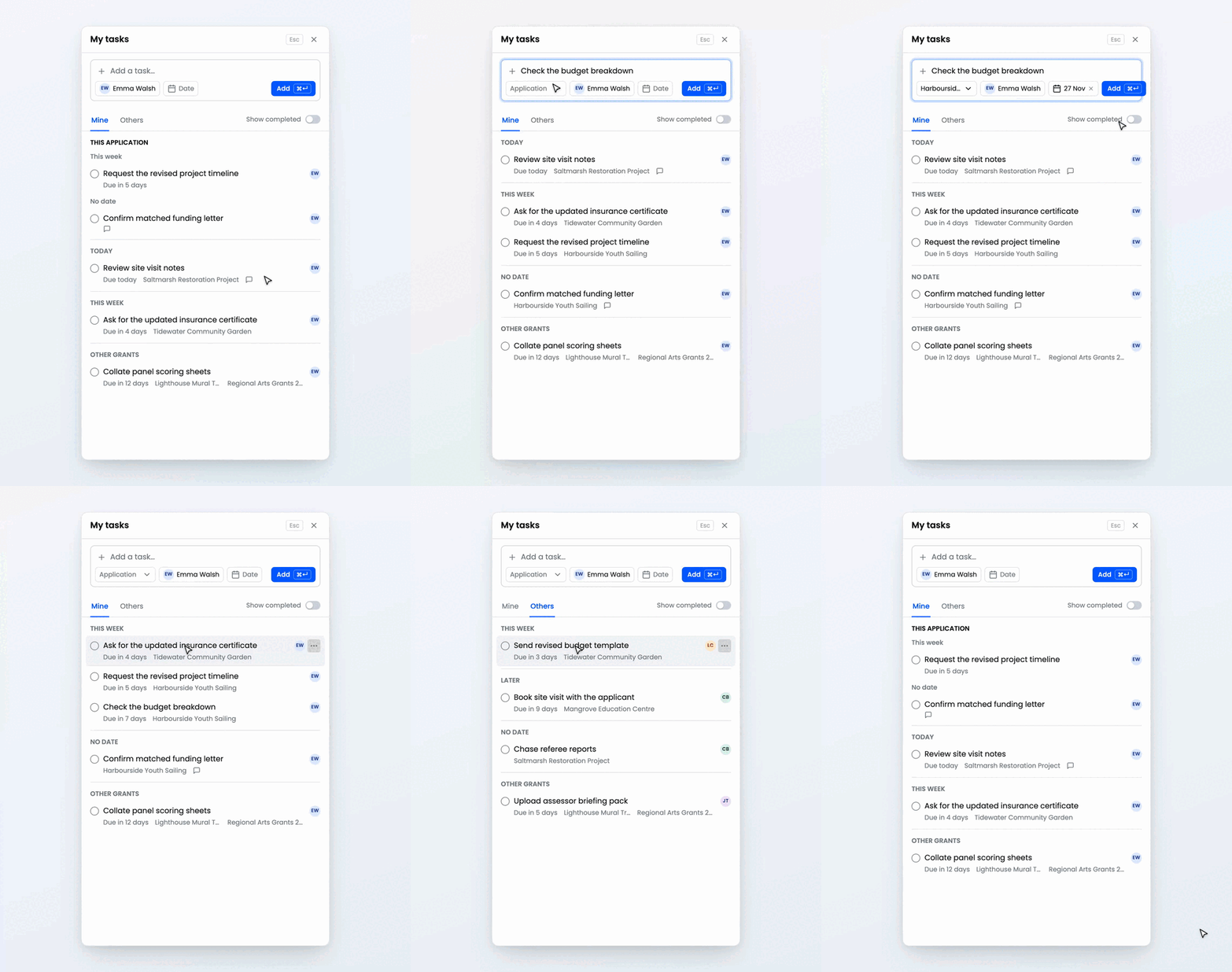
Where to find it
Open any grant. A tab with a checklist icon sits on the right edge of the screen, showing how many tasks you have open in that grant. Click it, or press G then T, to open the panel. Press G T again, or Esc, to close it.
On an application, the Tasks tab in the right-hand sidebar opens the same panel, and its count is the number of open tasks on that application.
Adding a task
- Type what needs doing in Add a task. Pressing T then A anywhere in the grant brings you straight here.
- If you are not on an application, choose the application the task is for. You can search by name or application ID.
- Choose who it is for. It starts as you.
- Add a due date if there is one.
- Click Add, or press ⌘ Enter (Ctrl Enter on Windows).
The row clears, ready for the next task. Whoever you assign it to gets an email, unless you assigned it to yourself.
Mine and Others
Mine lists the tasks assigned to you. Others lists the tasks you have handed to other people, which is where you check on what you are waiting for.
Both are grouped by due date: Overdue, Today, This week, Later and No date. On an application page, that application's tasks come first under This application, and the rest of the grant follows. Tasks from your other grants sit at the bottom under Other grants, with the grant's name on each.
Turn on Show completed to see finished tasks in this grant, newest first. Load more brings in older ones, 20 at a time.
Working through a task
Tick the circle to mark a task complete. Click its title to open the application. Hover over a task to edit or delete it from its menu. If the task came from a comment in History, the speech bubble under it takes you to that comment.
What to expect
The panel only appears inside a grant, and the count on its tab is for that grant alone.
Every task belongs to an application, so you cannot add one without choosing an application.
Only the person a task is assigned to, or a grant admin, can mark it complete. The person who created it, the assignee and grant admins can edit or delete it.
Others normally shows only the tasks you created. On an application page, its This application group also lists tasks there that colleagues have assigned to each other, so you can see everything on that application between Mine and Others.
Show completed lists finished tasks in this grant only; finished tasks in other grants aren't shown there.