
Finding Similar Applications
When you review an application, the Similar applications panel lists other applications in the same grant whose answers overlap with it. Use it to catch a resubmission under a new name, two organisations proposing the same project, or a close comparison worth scoring side by side.
Where to find it
Open an application. The panel sits at the bottom of the right-hand sidebar and stays there on every sidebar tab. Click the arrow beside the heading to collapse it, or the book icon to open this article.
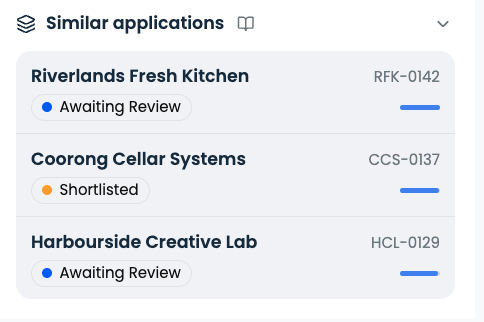
The three closest applications are listed first. Click Show all to see the rest. The panel is hidden while you rank an application, so the sidebar stays free for scoring.
Reading a row
Each row shows the application's name and ID, its current status in the same colours as the application list, and a short bar. The bar compares each application with the closest match, so the top row always has the longest bar.
Matching uses what applicants wrote in their answers. Optible leaves out the wording of the questions, because every application in a grant shares it.
Previewing an application
Click a row to open a preview over the page you are on. It shows that application's answers on the left and its criteria rankings on the right, and nothing in it can be changed. Click Open application to go to the full page, or press Esc to come back.
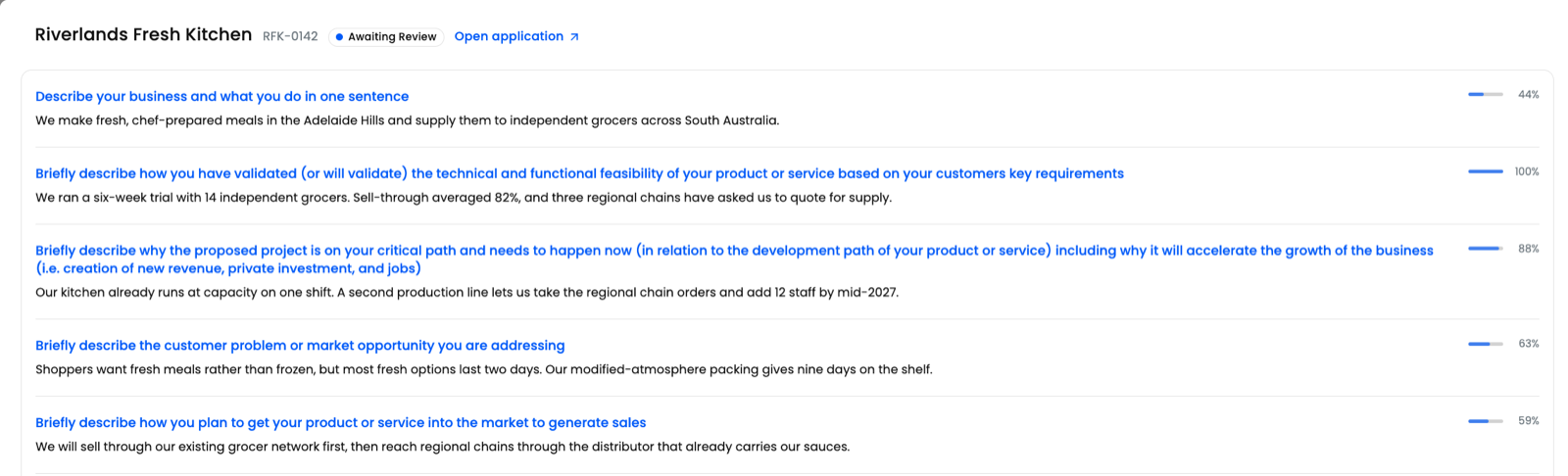
Each answer that matched has a bar and a percentage on its right. Hover over one to see how many passages matched in that answer. The answer with the most overlap shows 100%, and every other answer is measured against it. Use the percentages to find where two applications overlap, then read both answers before you draw a conclusion.
What the panel includes
You only see applications you can already open, and drafts and archived applications are left out.
Matches are not always two-way: if application A lists B, B may not list A. A newly submitted application can also take a little while to appear in other applications' lists.
If the panel is missing
Similar applications is switched on per grant. If the panel does not appear, or says it is still indexing, contact us and we will check the grant's set-up.