
Dashboard
The Dashboard is the first page you see when you sign in. Start here to see which applications need you today. It covers every grant you work on, or just the one you are in.
Where to find it
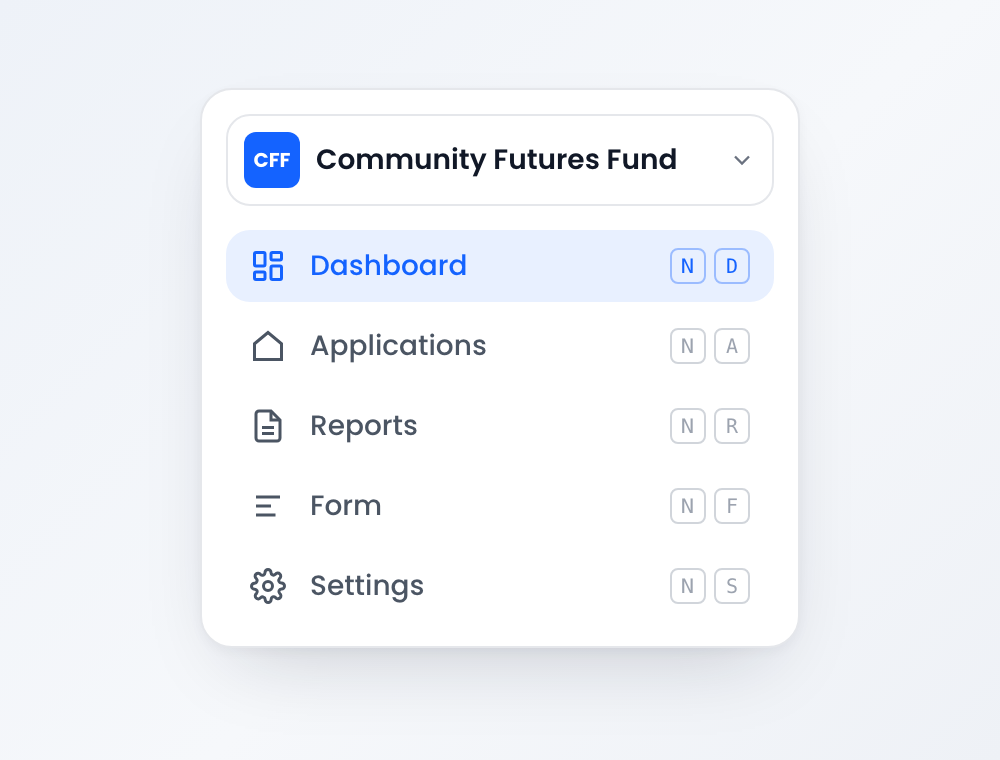
Sign in, or pick a grant from the grant switcher at the top of the sidebar. Optible opens that grant's Dashboard.
From any page inside a grant, select Dashboard at the top of the sidebar, or press N then D.
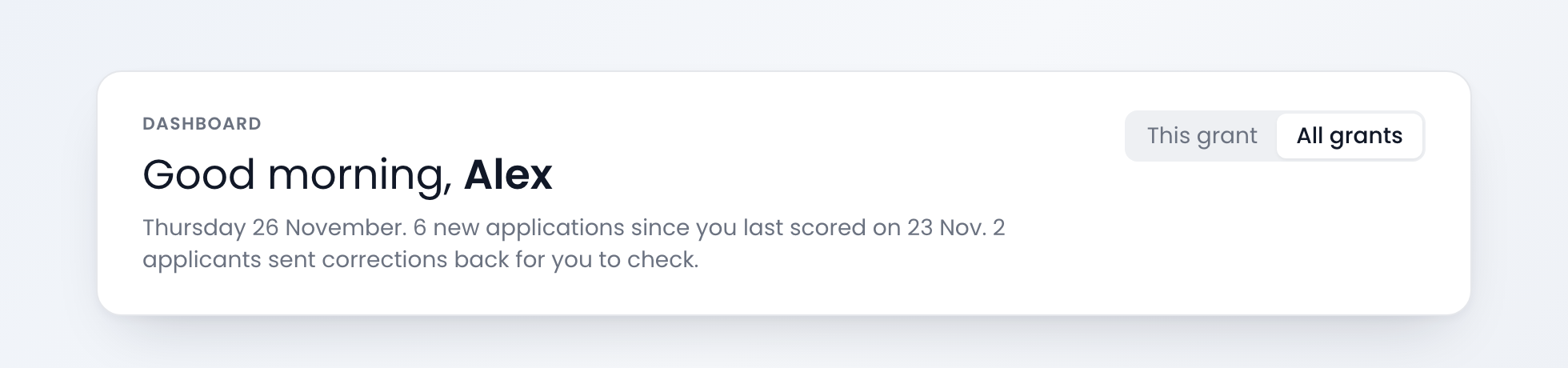
To see every grant at once, select All grants at the top right of the Dashboard, or select Dashboard on the grants list.
Optible remembers whether you last used This grant or All grants, and opens the same view next time.
What's on it
The line under your name says how many applications are new since you last scored one, and the next thing worth doing, such as corrections an applicant has sent back.
Programs
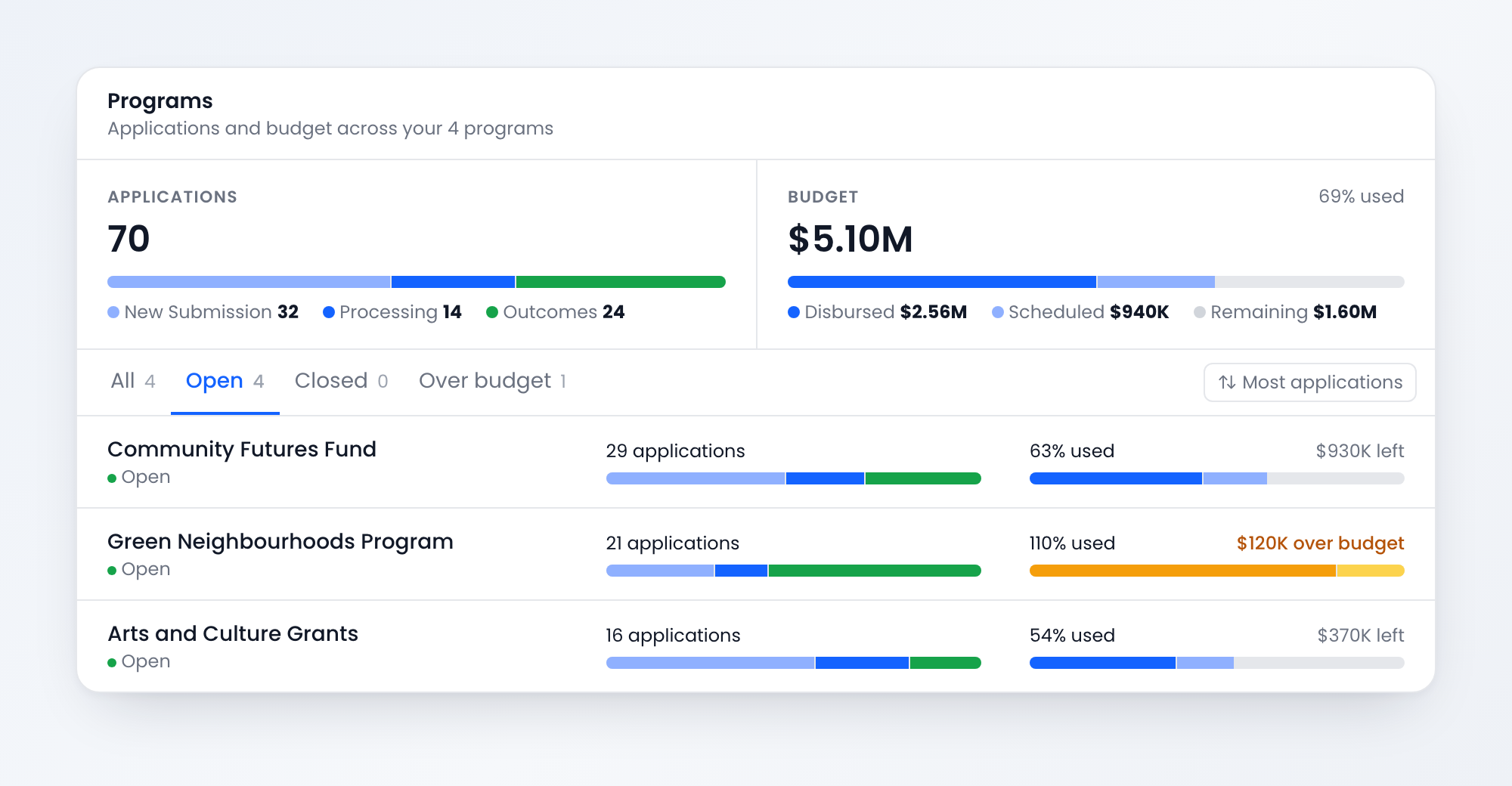
On All grants, each program shows its applications by stage and how much of its budget is paid or booked. Filter to open, closed or over-budget programs, sort them, and select a program to open its applications. Inside one grant, the card shows that grant's applications and budget, with a link to its application list.
The four figures
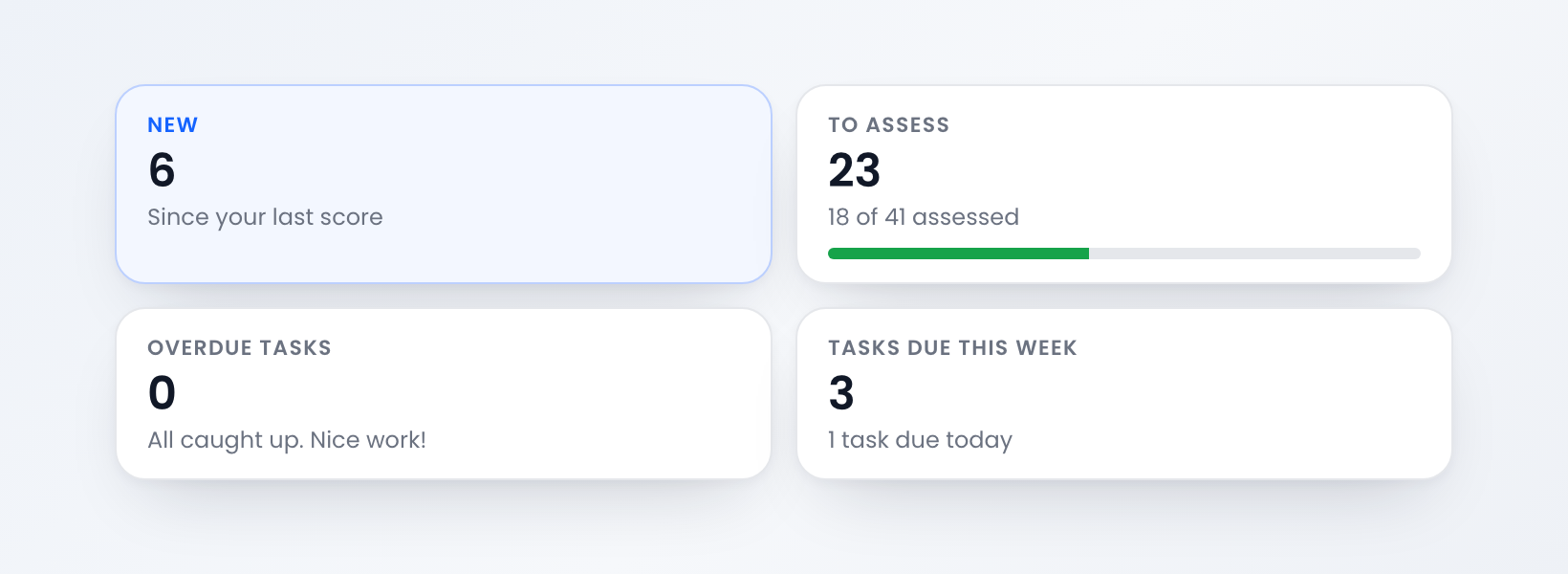
New counts applications submitted since you last scored one, and To assess counts the open applications you have not scored, with a bar for how far through you are. Select either to jump to its tab below. Overdue tasks and Tasks due this week come from your own tasks, and open My tasks.
Applications
Each tab shows ten applications per page. The number on a tab is always the number in its list.
New: applications submitted since your last score, or in the last 7, 14 or 30 days.
To assess: applications you have not scored.
Assigned to me: applications where you are the project lead or own a progress report.
Corrections: applications where the applicant has sent back the information you asked for.
Reports: progress reports due soon or overdue, and submitted reports waiting for your review.
Flagged: applications with an open warning, or with flags you have not yet sent to the applicant.
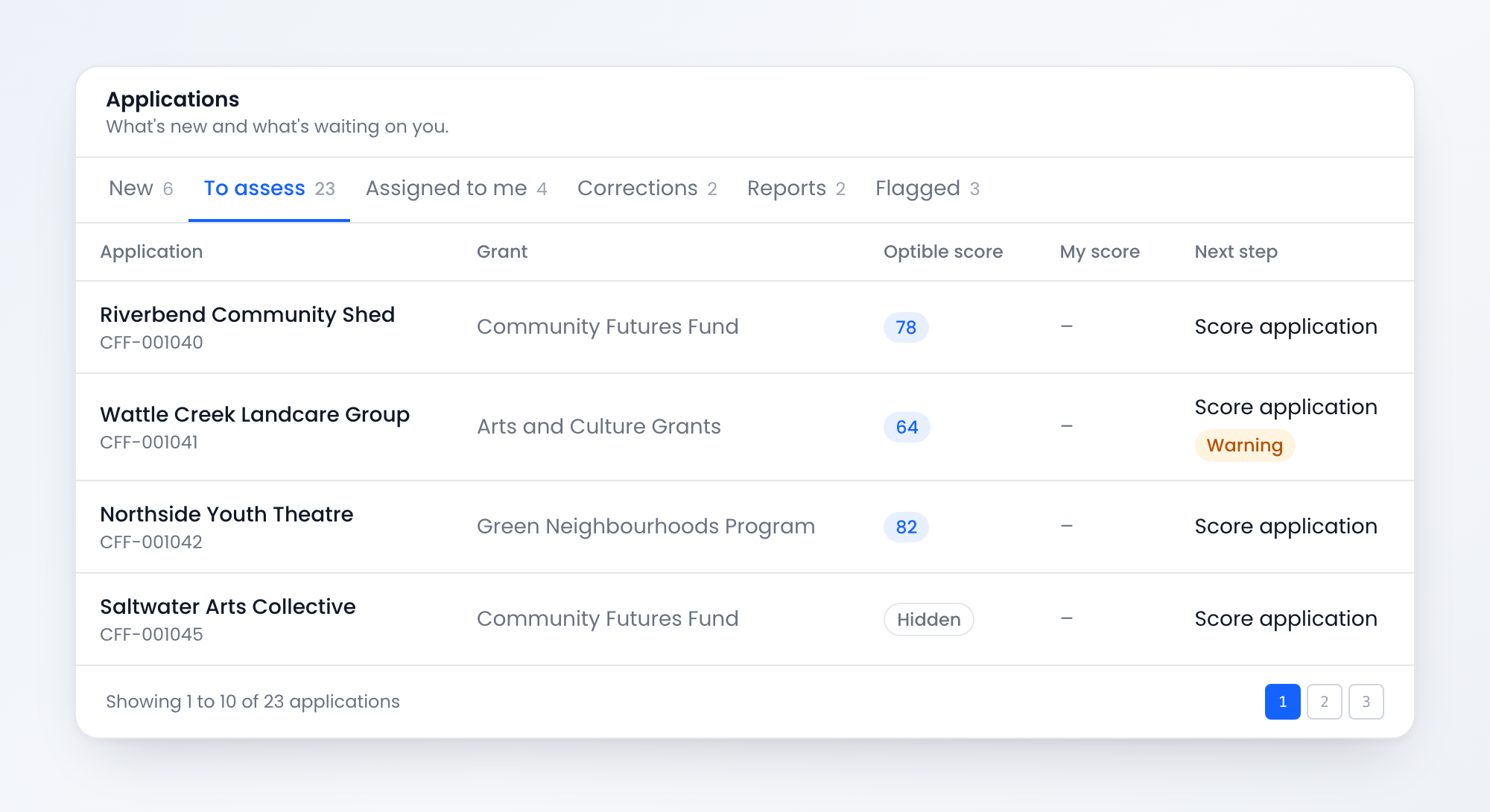
Alongside the list
My tasks: your open tasks, with a button to add one.
Worth a second look: warnings on your applications and flags you have drafted but not sent.
Progress by grant: how many applications you have scored in each grant, when you work on more than one.
Recent activity: status changes, returned corrections and submitted progress reports from other people in the last 14 days.
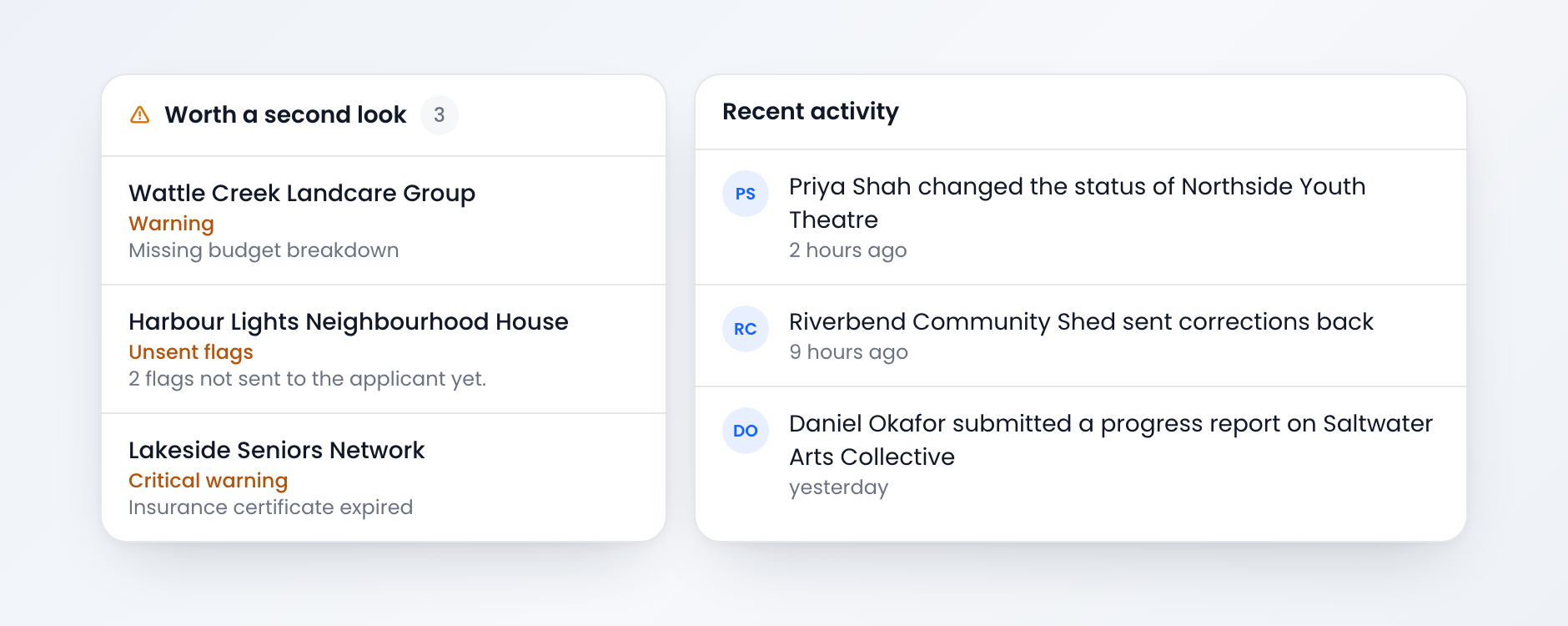
One grant at a time
Select This grant and every number on the page counts the grant you are in, and nothing else.
What to expect
The Dashboard only counts applications you can open. Applications you are blocked from, stages hidden from assessors and archived applications are left out.
Optible's score appears once the application has been checked. If a stage hides Optible's score, you see Hidden instead, unless you are an admin of that grant.
New looks back 30 days at most. If you have not scored anything in that time, it shows the last 30 days.
Budget figures appear only for grants where you are an admin.
A progress report with no owner and no project lead does not appear on anyone's Reports tab. Assign it to someone to bring it in.
Comments are not part of Recent activity. Open the application's History to read them.