
Dashboard
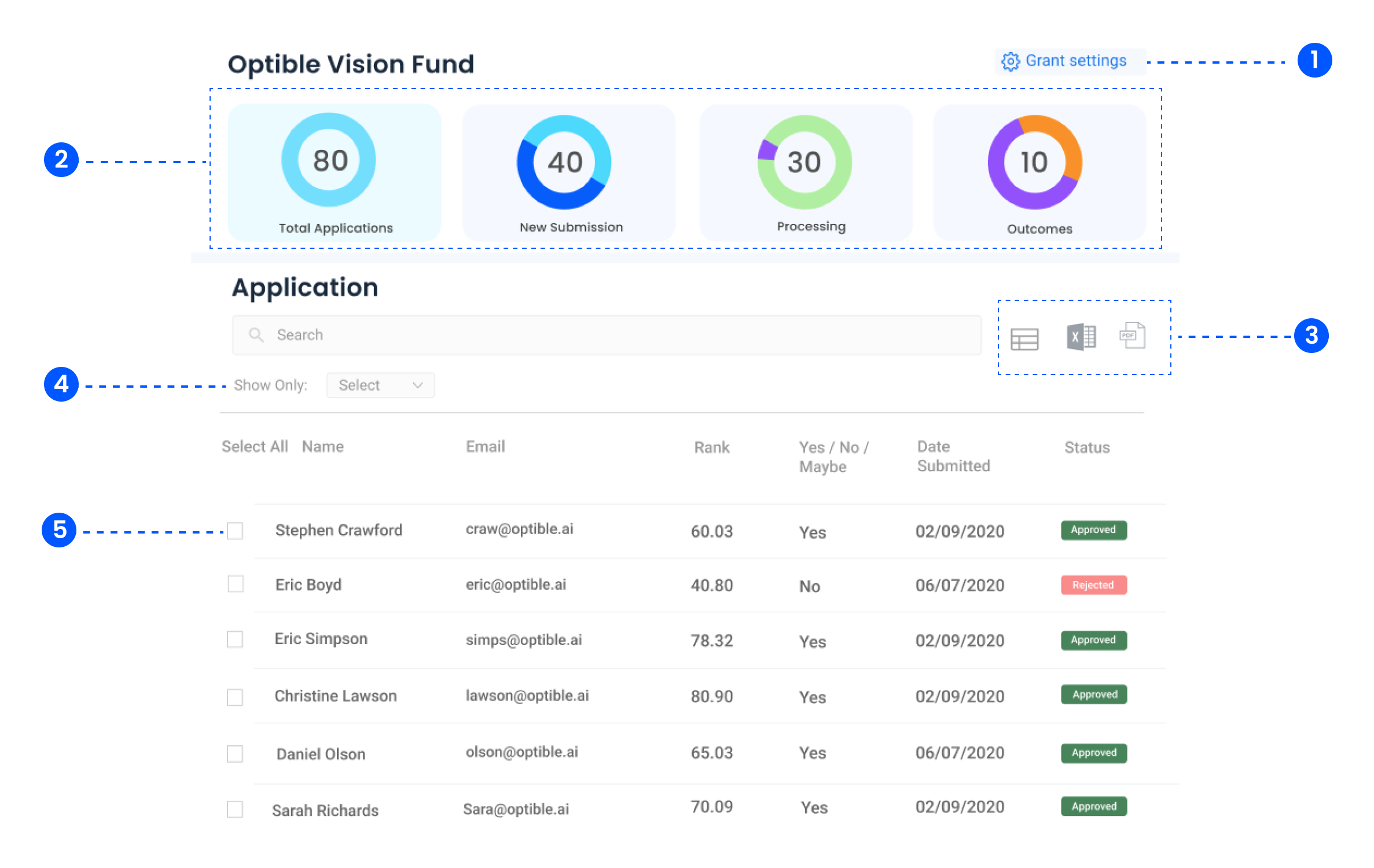
1. Grant Settings
Navigate to grant settings to modify grant configuration.
2. Summary Charts
Visual overview of key metrics: Total Applications, New Submissions, Processing, Outcomes.
Clicking a chart filters the application list to that category.
3. Finding applications
There are two ways to narrow the list.
Search in plain English. Type an ordinary sentence such as "submitted applications from regional councils asking for more than 50k". A normal search runs first; if nothing matches, the sentence is interpreted and comes back as editable filter chips you can correct.
Build a filter. Click Filter to pick a field, an operator and a value, and combine conditions with AND or OR. On status and assigned-to you can use is any of to name several values in one condition.
Useful combinations can be saved as named views. See Using Saved Filters.
4. Acting on a set of applications
Tick rows to bring up the bulk action bar. If you tick everything on the page while more applications still match, a banner offers select all matching, which extends the selection to the whole filtered set.
From there you can change status across the batch, set or clear a project lead, or export.
Bulk status changes send the status-change emails, so it is worth checking the template first. See Updating Many Applications at Once.
5. Export
The spreadsheet export follows your current filter rather than only the rows you ticked, so it covers matches on pages you never scrolled to.
Up to about a thousand applications the file downloads straight away. Above that it is queued and the page waits for it. Nothing is emailed, so leave the tab open.
See Application Report Export for the single-application document export.
6. Applications List
Displays applicant name, email, Y/N/Maybe classification, score, submission date, and status.
Y: Rank of 70 or above. N: Rank of 50 or below. Maybe: Rank between 50 and 70.
The score column can be empty: a status set to hide the Optible score removes it for assessors on that status.