Skip to content
Optible Help Center home

Application Report Export

The Application Report Export feature allows users to generate customized reports for applications, which can then be exported as PDFs. Below is a breakdown of the different elements in this interface:

1. Customization Options

Customization Options

  • Primary Color: Users can select a color that will be applied to the report's headings or other design elements. We can either select a color from the color palette or add the hex code of the color.

  • Primary Font: A dropdown allows users to select a font style (e.g., Poppins) that will be used in the report.

2. Logo Upload

Logo Upload

  • Users can upload a custom logo that will appear in the exported report or PDF.
  • Clicking Upload allows users to select an image file.
  • After a logo is uploaded, it is displayed under Uploaded Logo, with a link to the file which we can download it as well.

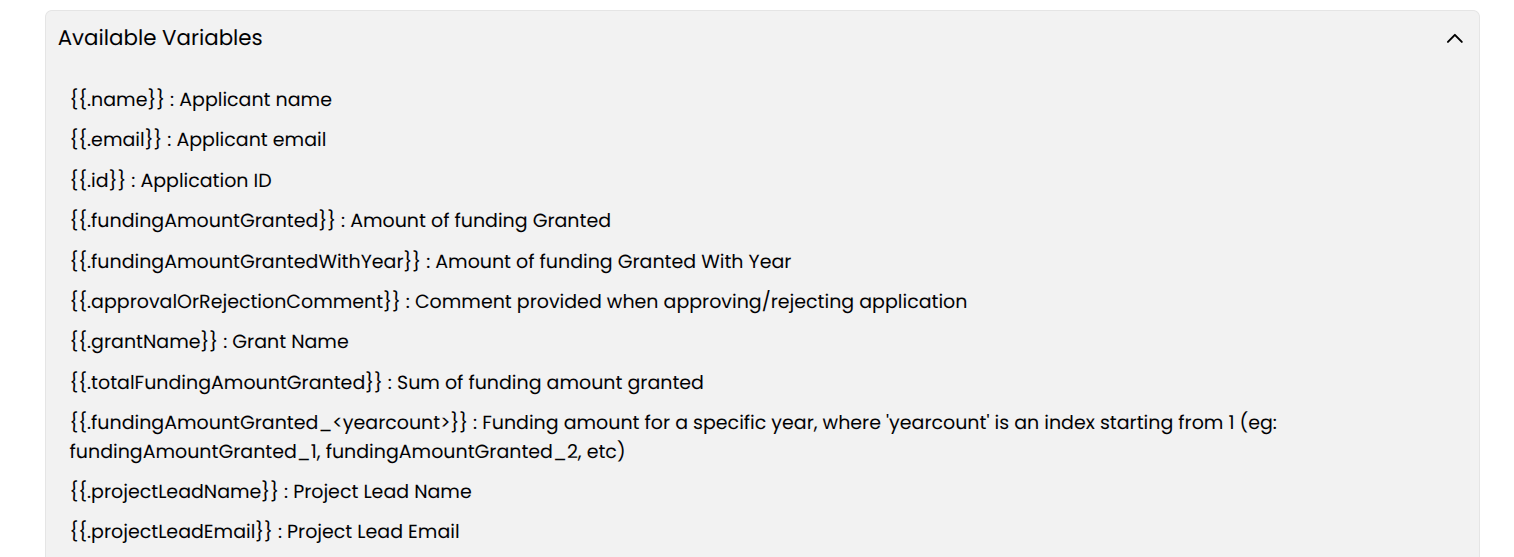
3. Available Variables

Available Variables

  • This section serves as a reference purpose for users to be used as variables. These variables can be used in Content section of the template. For eg: Placeholders like {{.name}}, {{.email}} and many more as shown above are replaced with actual values when the PDF is being generated.

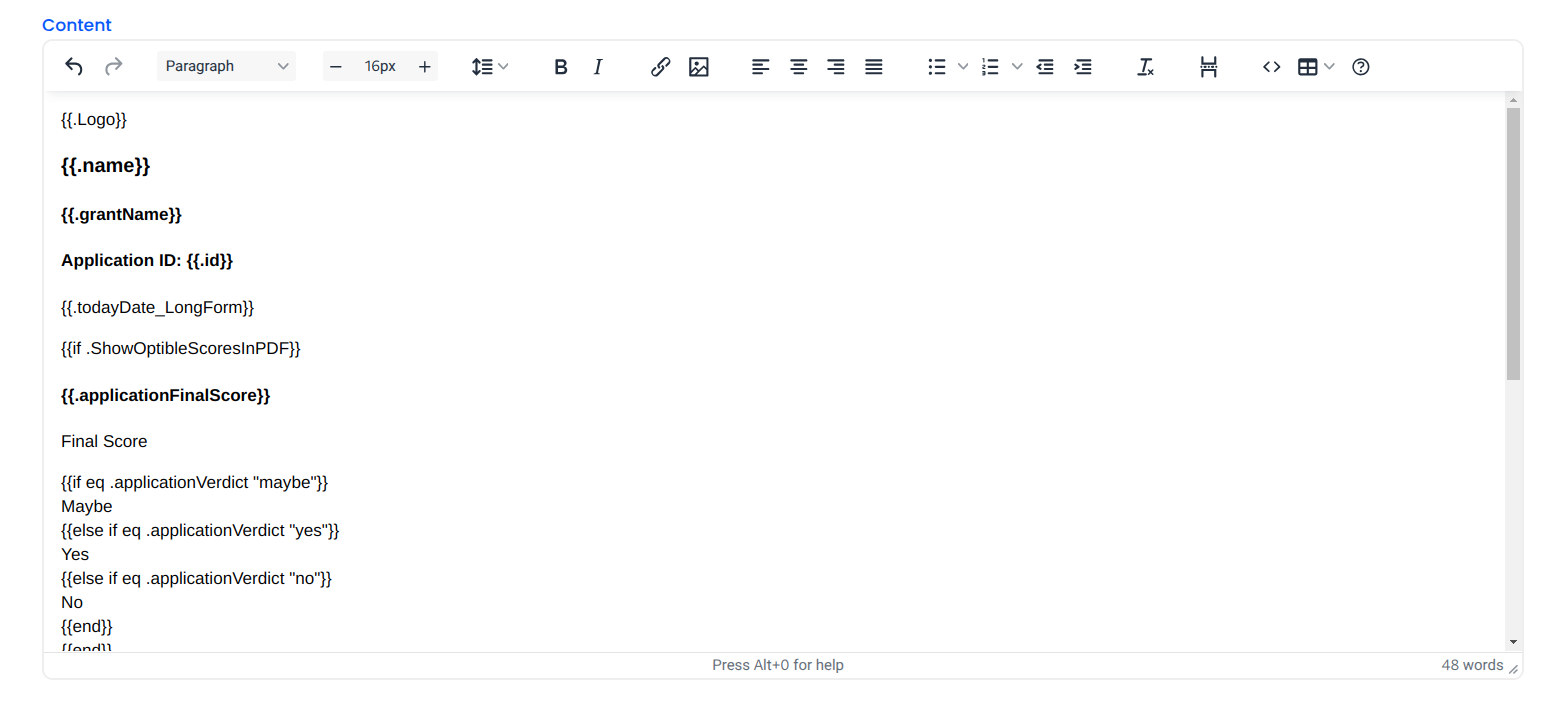
4. Content section

Content section

  • This section is a Rich Text Editor field which provides formatting tools to customize the report, including bold text, lists, tables, and headers.
  • Users can insert dynamic placeholders (e.g., {{.grantName}}) that will be replaced with actual application details when generating the report or PDF.