
Sending Email From Your Own Domain
By default, emails to applicants are sent from Optible's shared address with your organisation's display name. Once you verify your own domain, they are sent from an address on that domain instead, for example grants@yourorg.org.
Before you start
You need to be an organisation admin in Optible.
You need access to your domain's DNS settings, or someone who does (usually your IT team or domain registrar).
Set it up
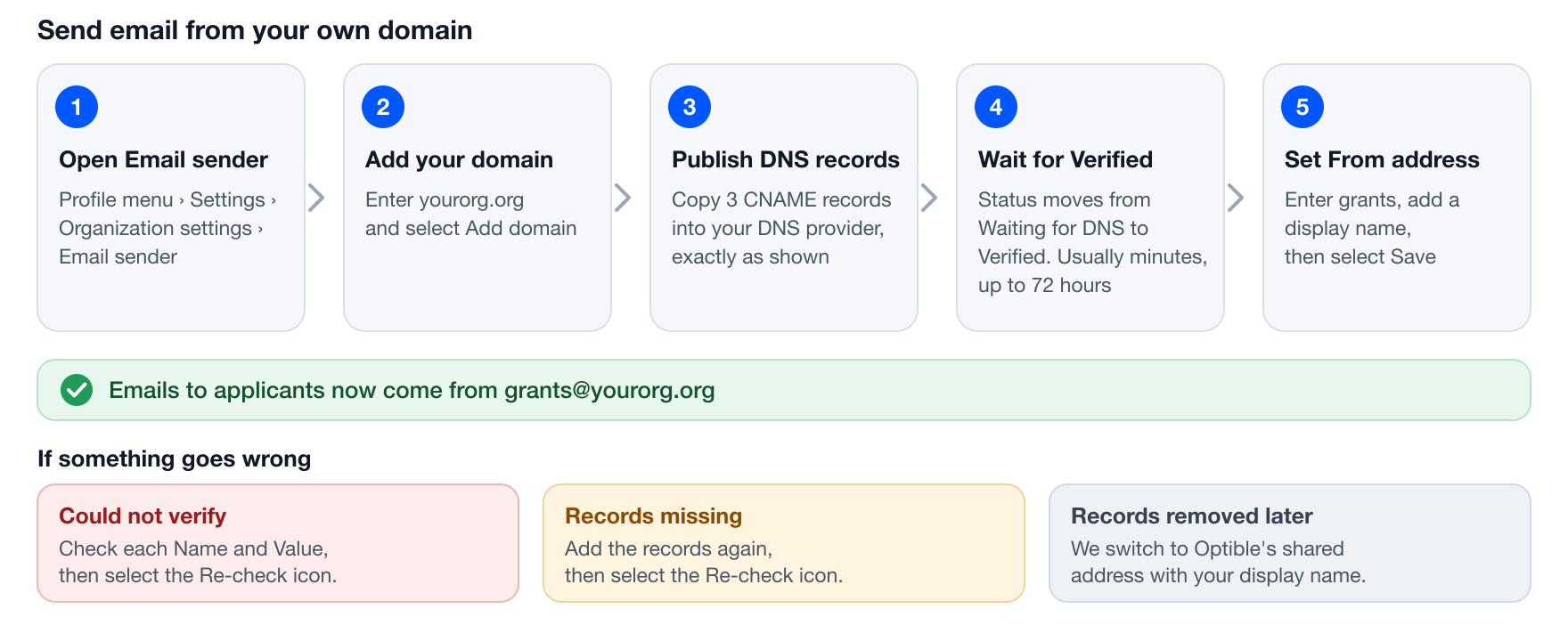
Open Settings from the profile menu, then Email sender under Organization settings.
Enter your domain, for example yourorg.org, and select Add domain. You can use your main domain or a subdomain such as mail.yourorg.org.
Optible shows three DNS records. Copy each one into your DNS provider as a CNAME record, using the Name and Value exactly as shown. The copy button next to each value helps avoid typing mistakes.
Wait while the status shows Waiting for DNS. The page refreshes by itself. This usually takes a few minutes, but can take up to 72 hours.
When the status changes to Verified, a From address form appears. Enter the part of the address before the @ (for example grants), add a display name if you want one, and select Save.
From then on, emails Optible sends for your organisation, such as status updates and notifications, come from that address.
Tips for entering the records
If your DNS provider has a proxy option (Cloudflare calls it the orange cloud), turn it off for these records so they resolve directly. Proxied records cannot be verified.
Some DNS providers add your domain automatically. If so, enter the Name without your domain at the end. For example, enter abc123._domainkey instead of abc123._domainkey.yourorg.org.
Your existing email setup is not touched. These records do not change your mailboxes, SPF or DMARC records. They only let Optible sign emails sent as your domain.
What the statuses mean
Waiting for DNS: we are still looking for your records.
Verified: your domain is ready, and emails can be sent from your address.
Could not verify: we did not find the records in time, or they were entered incorrectly. Check each Name and Value, then select the Re-check icon (the circular arrows at the top right of the domain card). A re-check can issue new records, so copy the table again before you update your DNS. If the domain still cannot be verified, contact support and we will reset it for you.
Records missing: your domain was verified, but the records have since disappeared from your DNS. Add them again, then select the Re-check icon.
If the records are removed later
If the three records are deleted from your DNS, Optible notices when it next checks them. Emails then go out from Optible's shared address with your display name, so nothing stops, and we email the organisation admin who set up the domain. Add the records again and select the Re-check icon to switch back.
Remove your domain
Select the bin icon (Remove domain) at the top right of the domain card. Your From address is cleared and emails go out from Optible's shared address again. You can add a domain again at any time.
Troubleshooting
The status stays on Waiting for DNS. DNS changes can take time to spread. Check the records for typos, and that any proxy option is turned off for them.
The domain is already registered by another organisation. The domain is already set up by another organisation in Optible. Contact support so we can look into it.
I can't see Email sender in Settings. Only organisation admins can manage it.
Still stuck? Contact support from the help menu and include your domain name.