
Email Templates
Email Templates are triggered by specific events (e.g. application Approved, Rejected). This page allows you to add, edit, and delete templates.
1. Add an Email Template
Click the plus button and fill in:
- Status: The trigger event (e.g. Approved, Awaiting Review, Rejected).
- Form Name: Name of the associated form.
- Subject: The email subject line.
- Reply To: The reply-to email address.
- Send Automatically: Whether the email goes out on its own when the trigger fires, or waits for someone to send it manually.
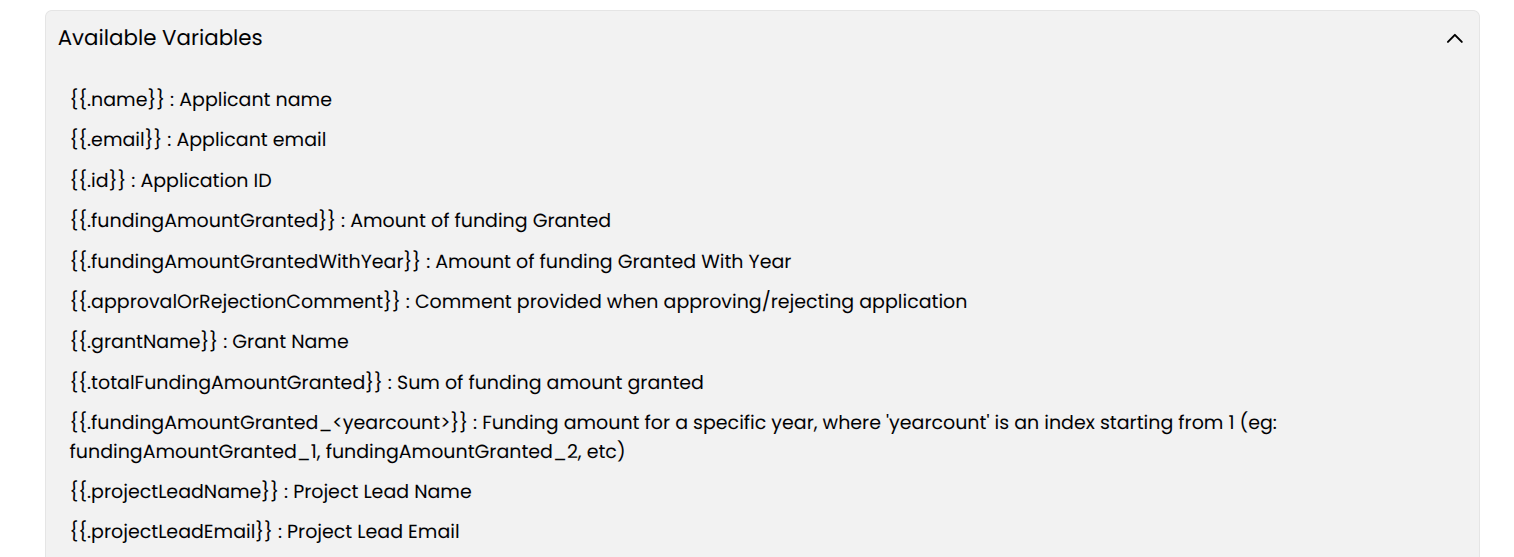
- Available Variables: Placeholders like {{.name}} replaced with real values when sent.
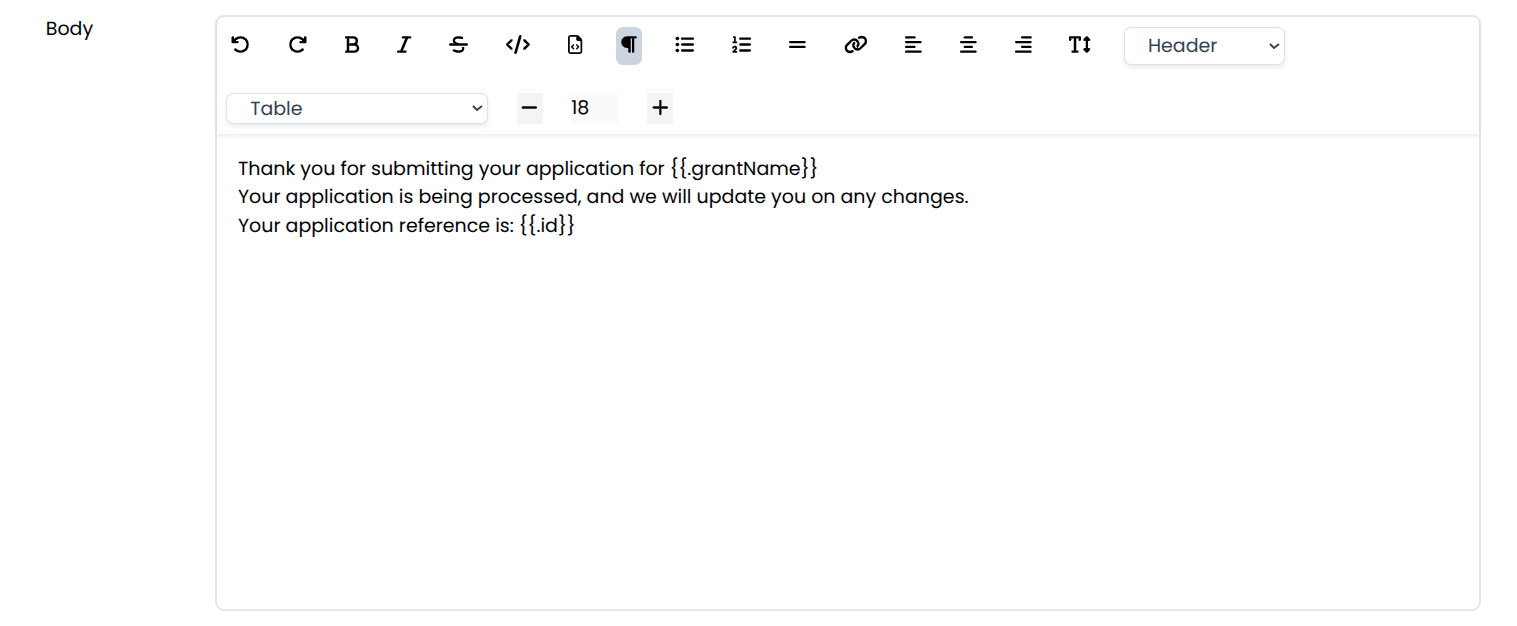
- Body: Rich text editor for the email content.
2. Email Templates List
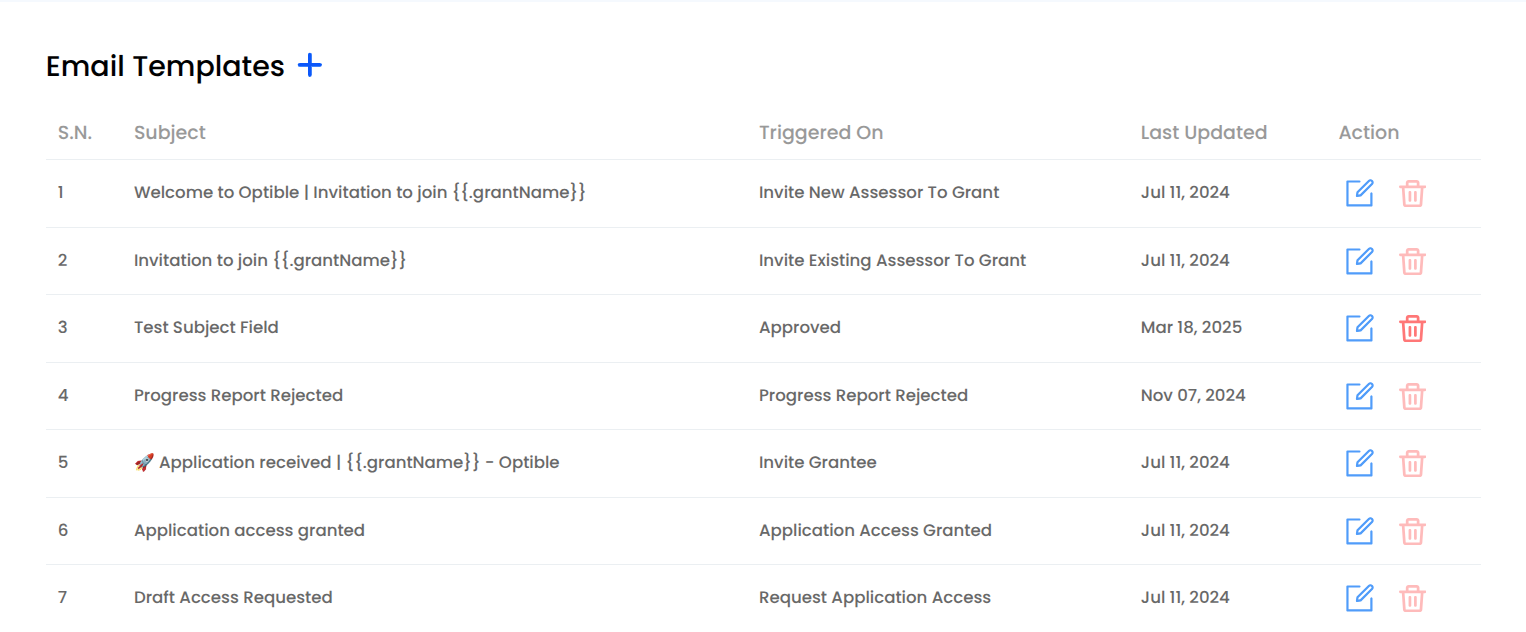
Displays Subject, Triggered On, Last Updated, and Actions (Edit / Delete).
3. Send Automatically, and why it matters in bulk
A template set to send automatically fires the moment its trigger status is reached. That is usually what you want, but remember it applies per application: moving three hundred applications into that status in one bulk action sends up to three hundred emails, and they cannot be recalled.
Templates left on manual send are drafted for you but wait until somebody presses send. See Updating Many Applications at Once.
4. Templates that come with the grant
Some templates are created on every grant so you can reword rather than write them from scratch. Invite Applicant to Grant is the email sent when you invite somebody to apply to an invite-only grant — see Invite-Only Grants and Applicant Invitations.