
Contracts on an Application
The Contracts tab on an application holds the contracts and letters for that application: the ones Optible generates from your templates, and the final signed copies.
Where to find it
- Open the grant and click an application.
- Click the Contracts tab.
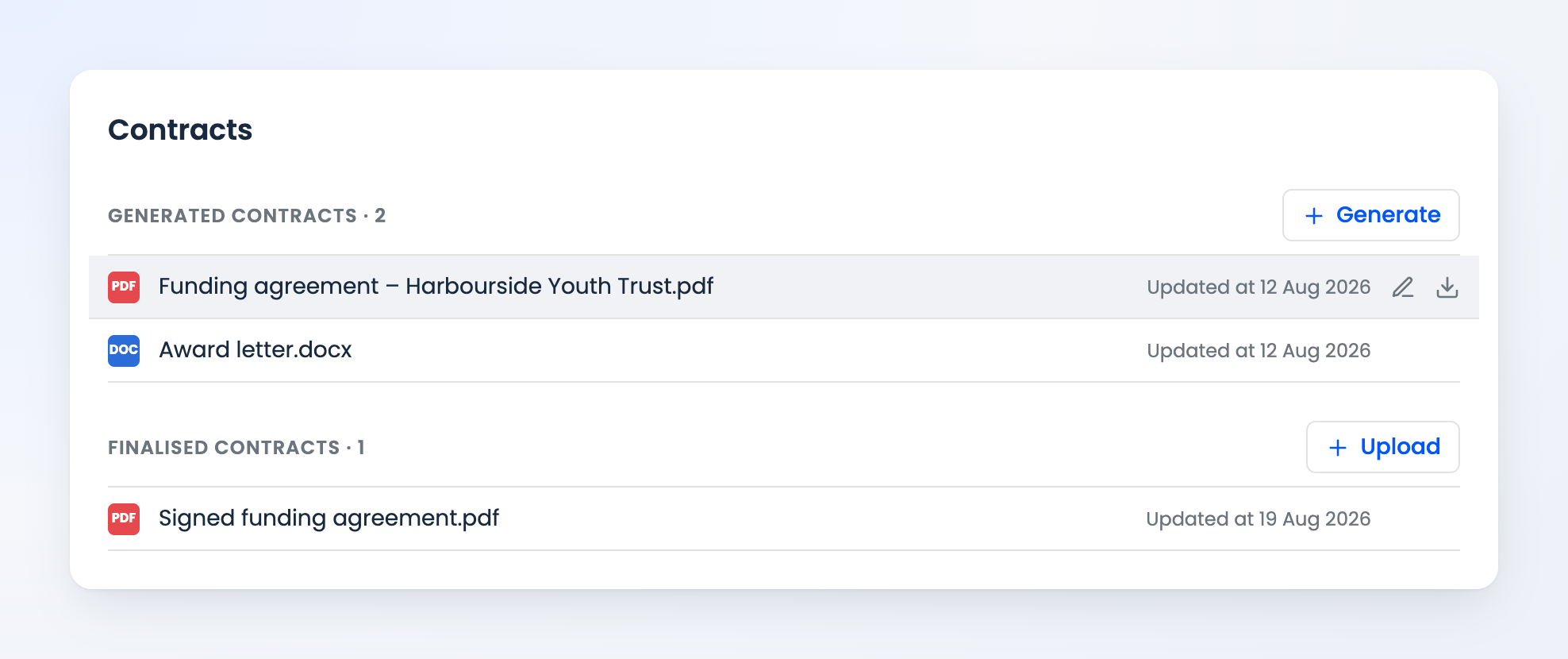
Generated contracts
Click Generate, pick one or more of the grant's contract and letter templates, check the preview, and save. Optible fills each template with the application's details. This list appears once the application can be sent a contract.
To replace a generated contract with an edited version, hover it and click the pencil, then upload the new file.
Finalised contracts
Click Upload to add the signed or final copy of a contract.
Working with a contract
- Click a contract's name to open it.
- Hover a row and click the download icon to save a copy.
- Each row shows when the file was last updated.
Templates are set up in the grant's settings. See Contracts and Letters.