
The Optible Browser Extension
In this article
In this article group
The Optible extension shows an application's assessment next to the record you already have open somewhere else, so you can score it without switching over to Optible. Salesforce and Foundation Source are the systems it reads today.
Installing it
In Optible, click your avatar in the top right and choose Get the Chrome extension. It is in that menu on every page.
Choose Add to Chrome on the Web Store listing that opens.
Click the puzzle-piece icon in Chrome's toolbar and pin Optible, so the icon stays visible.
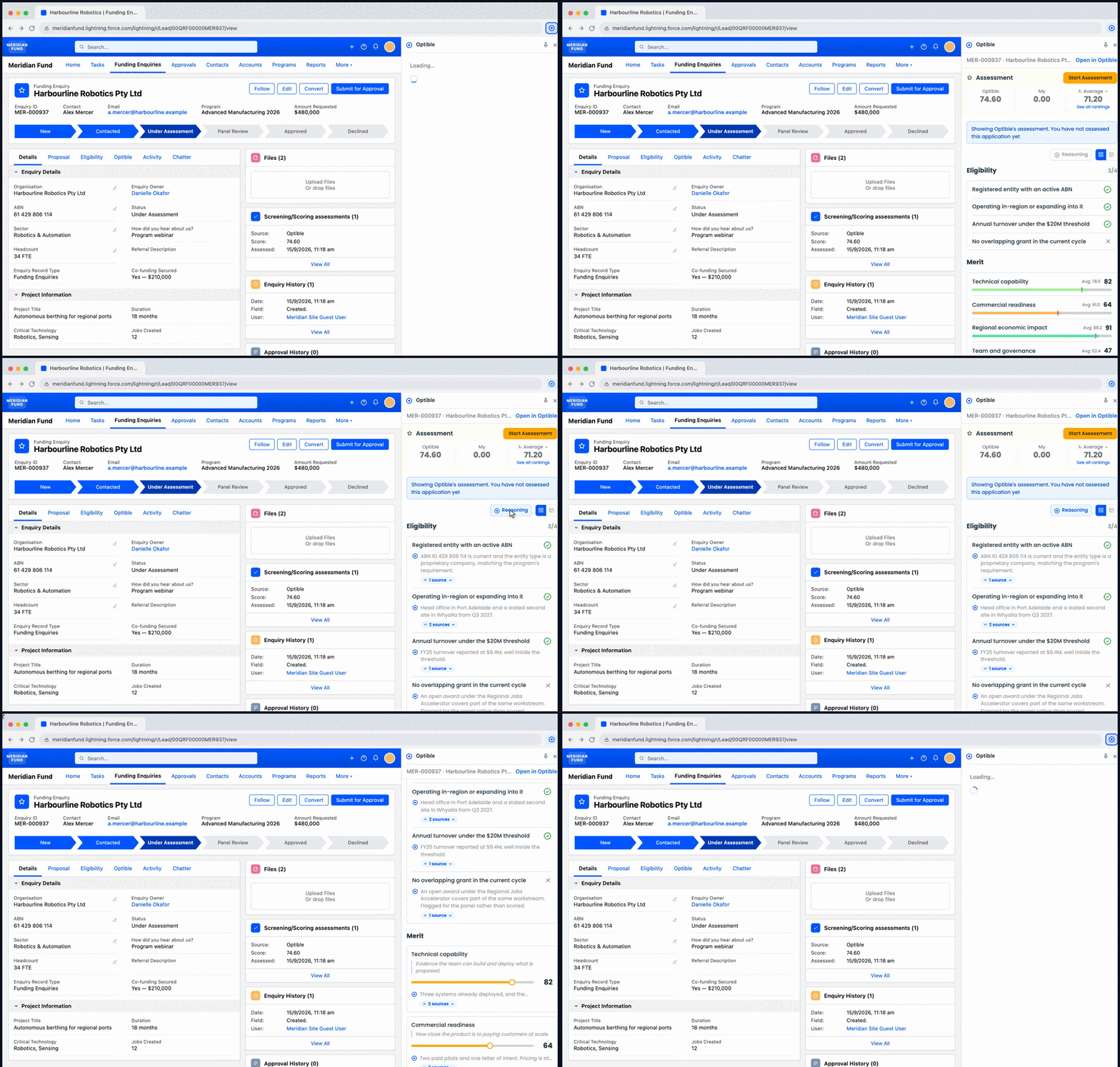
Click the Optible icon. The panel opens on the right of the browser window.
In the panel's Sites list, turn on the system you use, Salesforce or Foundation Source. Chrome asks you to allow Optible on that system.
Open a record in Salesforce, or a request in Foundation Source, and click the Optible icon again.
You install once, and turn each system on once. After that it is the icon in your toolbar.
Turning systems on and off
The extension only works on a system once you have turned it on in the Sites list, and Chrome asks for your permission each time you do. Until a system is on, the panel does not look up records or ask you to sign in on that system's pages. Turn a system off in the same list and Chrome takes the permission back.
You can open the panel on any tab from the toolbar icon. On a system you have not turned on, it just offers to turn it on.
Signing in
If you are already signed in to Optible in that browser, the panel picks up that session and opens straight onto the record. There is nothing to type. If you are not signed in, the panel shows a Sign in button and takes you through the usual Optible sign-in.
If your session expires part-way through an assessment, the panel renews it in place. You do not have to close and reopen anything, and you keep what you were reading.
What you see
You get the same criteria panel that sits on the application's Criteria tab in Optible:
The assessment summary at the top: Optible's rank, your rank, and the average across assessors.
Eligibility, with a pass or a fail against each gate.
Merit, with each criterion's score and the assessor average marked on the bar.
Reasoning. Switch it on to read why Optible scored each criterion the way it did. Under each explanation is a source count; expand it to see the questions and documents the score was based on.
There is more on reading those sources in Seeing the Evidence Behind an Optible Score.
Scoring from the panel
If your Optible account can assess this application, Start Assessment works as it does in the app. Move the slider on each criterion, add a comment, and choose Submit Assessment. The score is in Optible straight away, and anyone looking at the application there sees it.
If your account cannot assess, the panel is read-only and Start Assessment does not appear.
Moving between records
The panel stays open while you work. Open a different record, in the same tab or a new one, and the panel switches to that one. If a record has no application in Optible, the panel says so rather than leaving the last one on screen.
What the extension can see
Installing the extension does not ask to read your browsing history. It only asks for access to Salesforce or Foundation Source after you turn that system on, one system at a time. It uses that access to read the address of the tab you are on, which is how it works out which record you are looking at. It does not read the page itself, and it has no access to the contents of your Salesforce or Foundation Source account. Everything in the panel comes from Optible, using your own Optible sign-in and your own permissions.
What to expect
Salesforce and Foundation Source are the systems the extension reads today. It is built to take others, which is why the name has no system in it.
The panel carries the criteria and nothing else. Attachments, history and Opto stay in Optible, and Open in Optible at the top of the panel takes you to the full application. That has one consequence worth knowing. A source that points at a document will open that document, but a source that points at a form answer has nowhere to jump to inside the panel, because the panel does not show the application's answers.
Two kinds of record will not open. Applications that came in through SmartyGrants do not carry the record id the panel matches on, and a record that has not synced into Optible yet is not an application for the panel to find. Both open normally in Optible.