
Application Stages
The Application Stages page provides an organised view of different stages in an application's lifecycle. Each stage consists of multiple statuses that represent the progress of an application.
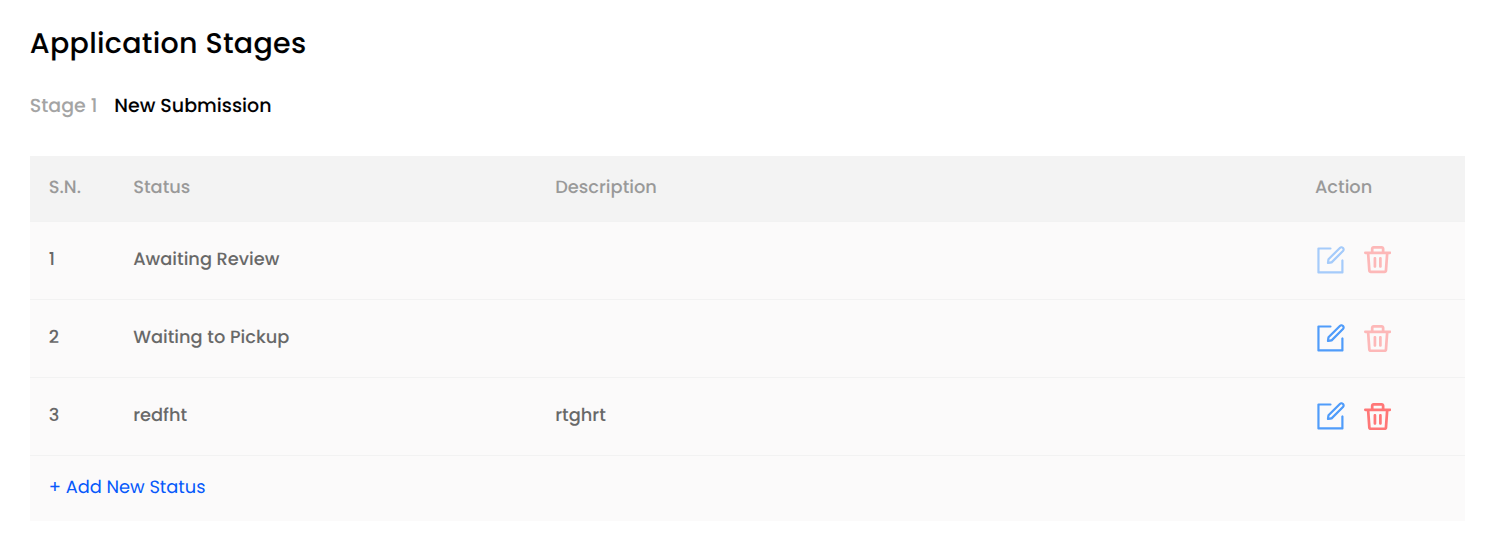
The four stages are: New Submission, Processing, Outcomes, and Archived.
1. Application Status Table
Each stage has a table with Status, Description, and Actions (Edit / Delete).
2. Add Status
Click Add New Status at the bottom of the table to define a new status.
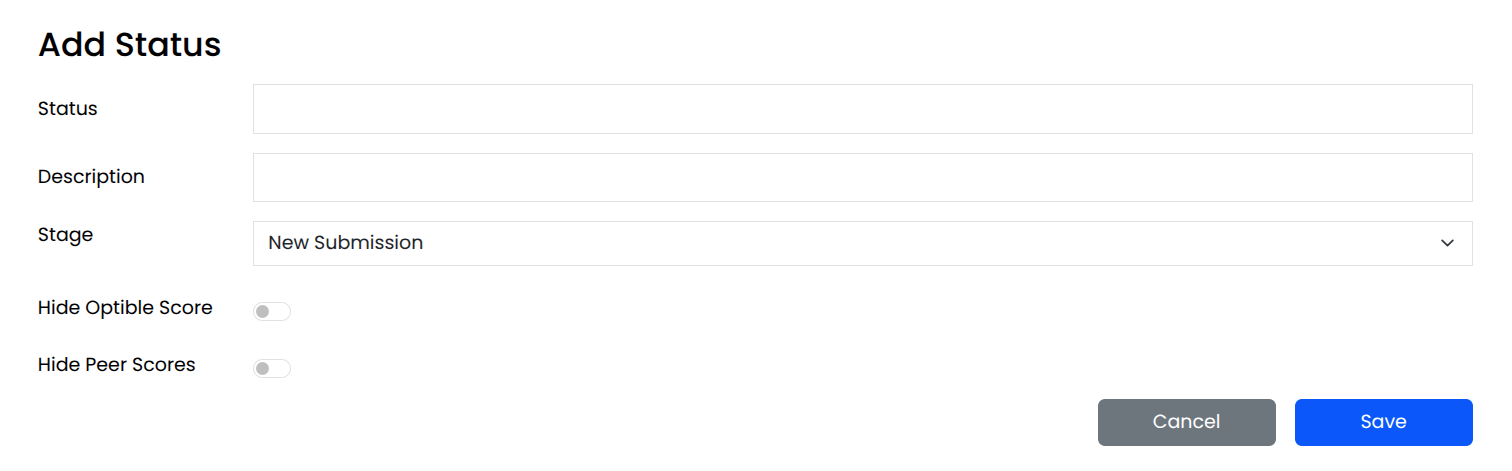
- Status: Name of the new status.
- Description: Optional explanation for the status.
- Stage: Pre-filled based on where you initiated the action.
- Hide Optible Score: Toggle to hide the Optible score for applications in this status.
- Hide Peer Score: Toggle to hide the peer score for applications in this status.
What hiding the Optible score also hides
Hiding the Optible score hides more than the number. Assessors on that status also lose Optible's written reasoning and the source badges that show which answers and documents it drew on.
That is deliberate: the reasoning explains the score, so showing one while hiding the other would give away the assessment you meant to keep back. Admins and analysts continue to see everything.
So if an assessor reports that scores or evidence have disappeared from an application, check which status it is sitting in before treating it as a fault.