Skip to content
Optible Help Center home

Post-Success Report

This section allows users to manage post-success reports.

How Post-success Report works?

1. Add Post-Success Report

  • An Add post-success report button is provided to create a new report.

Add Post-Success Report

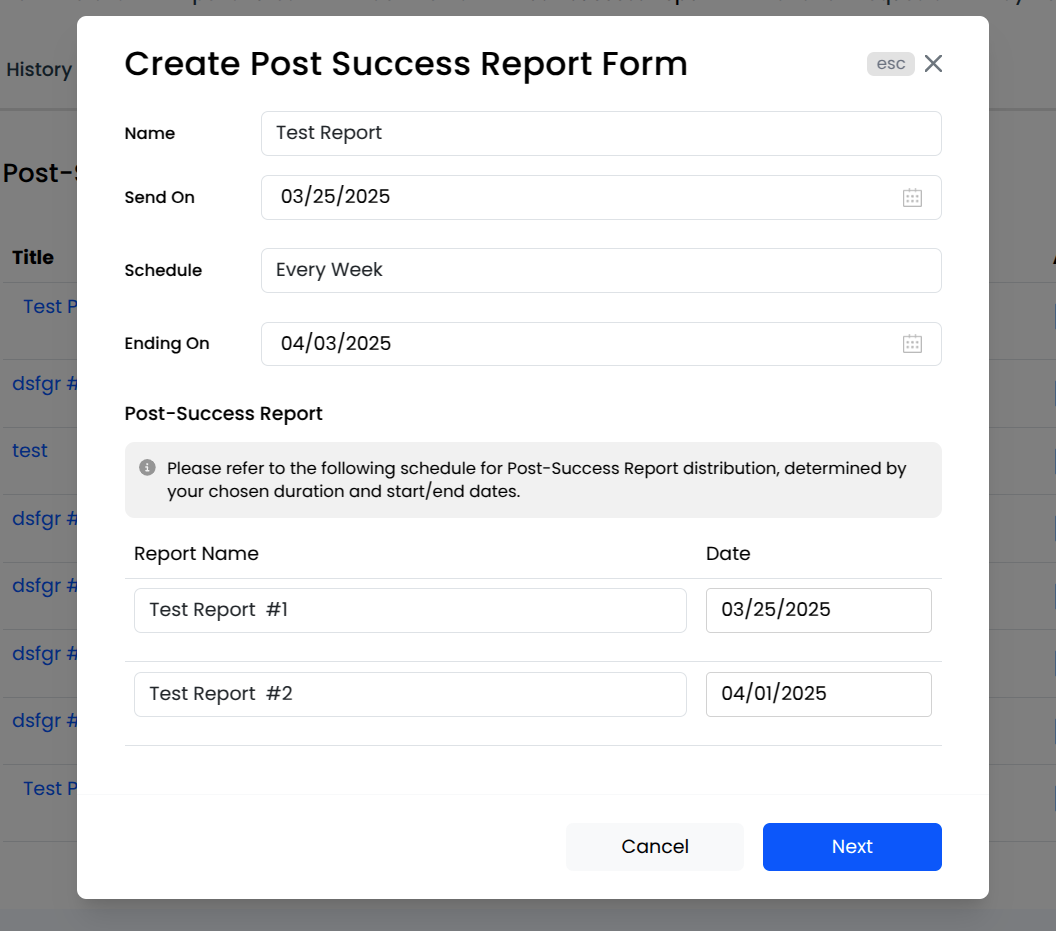
  • When the user clicks the Add post-success report button, a modal appears titled Create Post Success Report Form. This modal contains fields for:

    • Name
    • Send On
    • Schedule
    • Ending On
  • After adding the end date, it automatically generates a timeline for the Post-Success Report. This timeline lists the scheduled reports based on the selected Send On date, Schedule interval, and Ending On date.

    • For example:
      • If the report is scheduled Every Week and starts on March 25, 2025, with an end date of April 03, 2025, the system generates two reports.

      • And if the report is scheduled one off then the timeline is not displayed. Since a one-off report is sent only once on the selected Send On date, there is no recurring schedule.

        Post-Success Report Timeline

2. Select or Create a Template

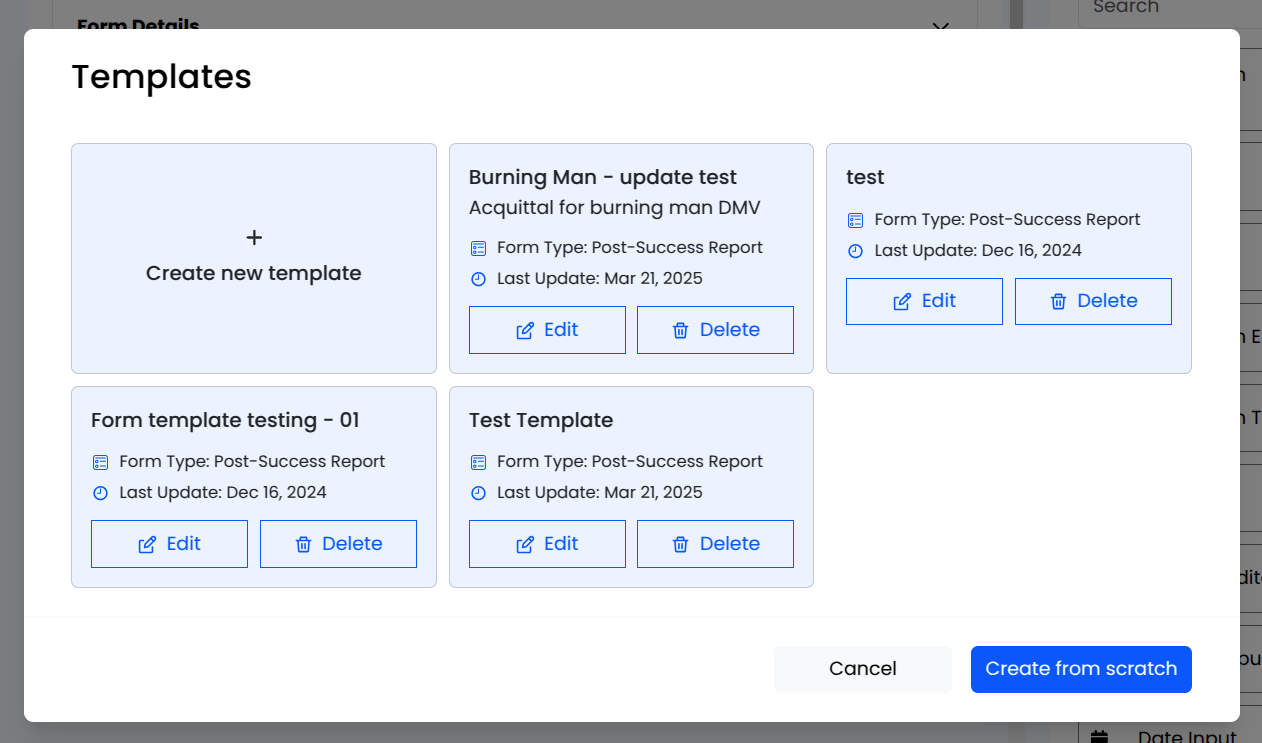
  • After filling in the required fields and clicking Next, users are directed to the Templates selection screen. Here they can:

    Templates

  • Choose an existing template: Select a predefined template to use for the Progress Report form.

  • Create a new template: Click on Create new template to make a custom template according to the requirements.

  • Start from scratch: Click the Start from scratch option to build a new form without a template.

  • After selecting a template, users are navigated to the Form Builder, where they can customize the template as needed. The key sections include:

    • Template Description: A collapsible section where users can modify the template title while viewing the template type.

      Template Description

    • Form Fields: Displays any pre-existing fields in the template. Users can:

      • Edit a field using the pencil icon.

      • Duplicate a field using the copy icon.

      • Delete a field using the trash icon.

        Form Fields

    • Form Elements: Users can drag and drop additional form elements into the form.

      Form Elements

  • After making modifications to the form elements, users can Save or Save & Proceed to finalize their changes and move to the next step.