
Attachments
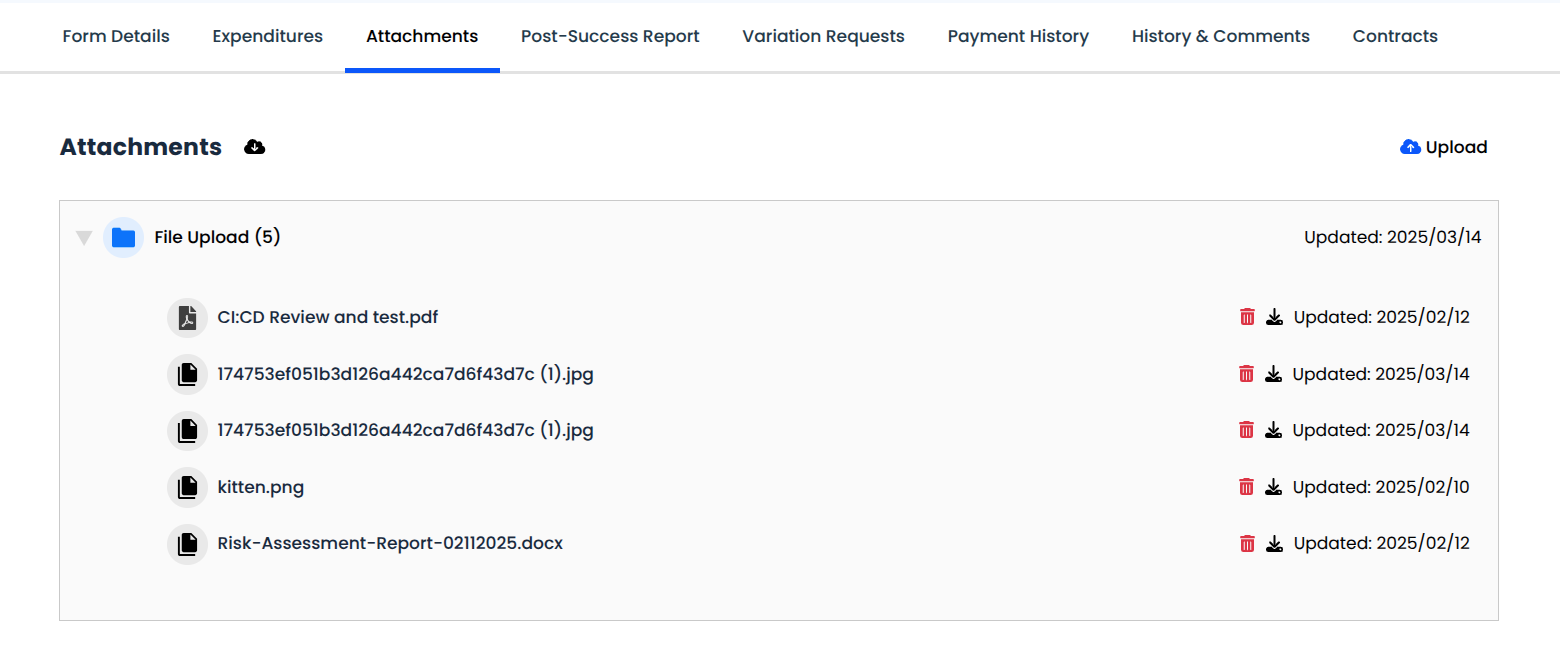
This section allows you to upload and view the files associated with an application. Below is the breakdown:
1. Viewing attachments
- We can see a structured list of uploaded files.
- The files are grouped under categories or labels (folders).
- Each file entry shows the filename, uploaded date, and actions (delete or download).
2. Upload Attachments
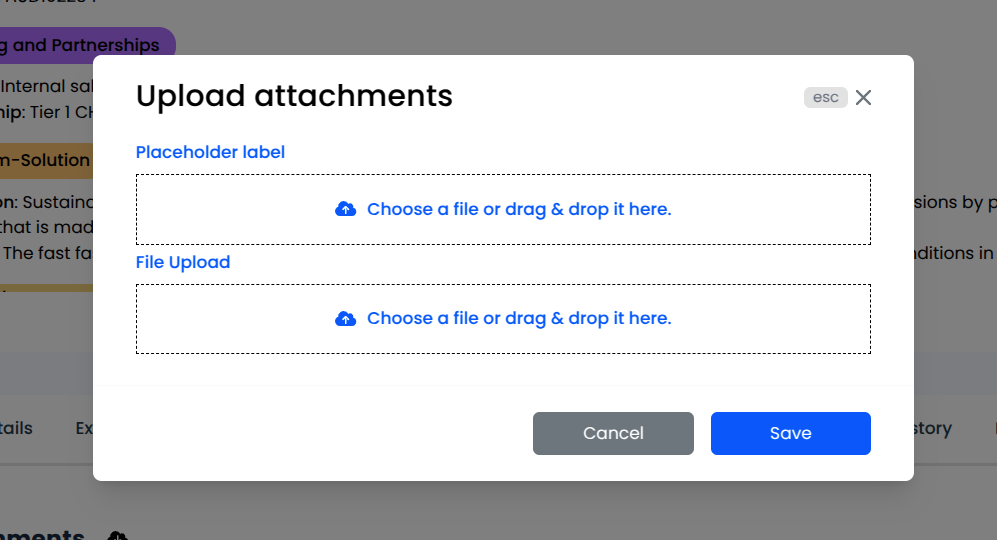
The upload icon, when clicked, opens a modal from where we can upload files.
It contains a Placeholder label and a File Upload section.
The Placeholder label is optional but when provided, it acts as a folder or category for the files uploaded below it.
Viewing Uploaded Files
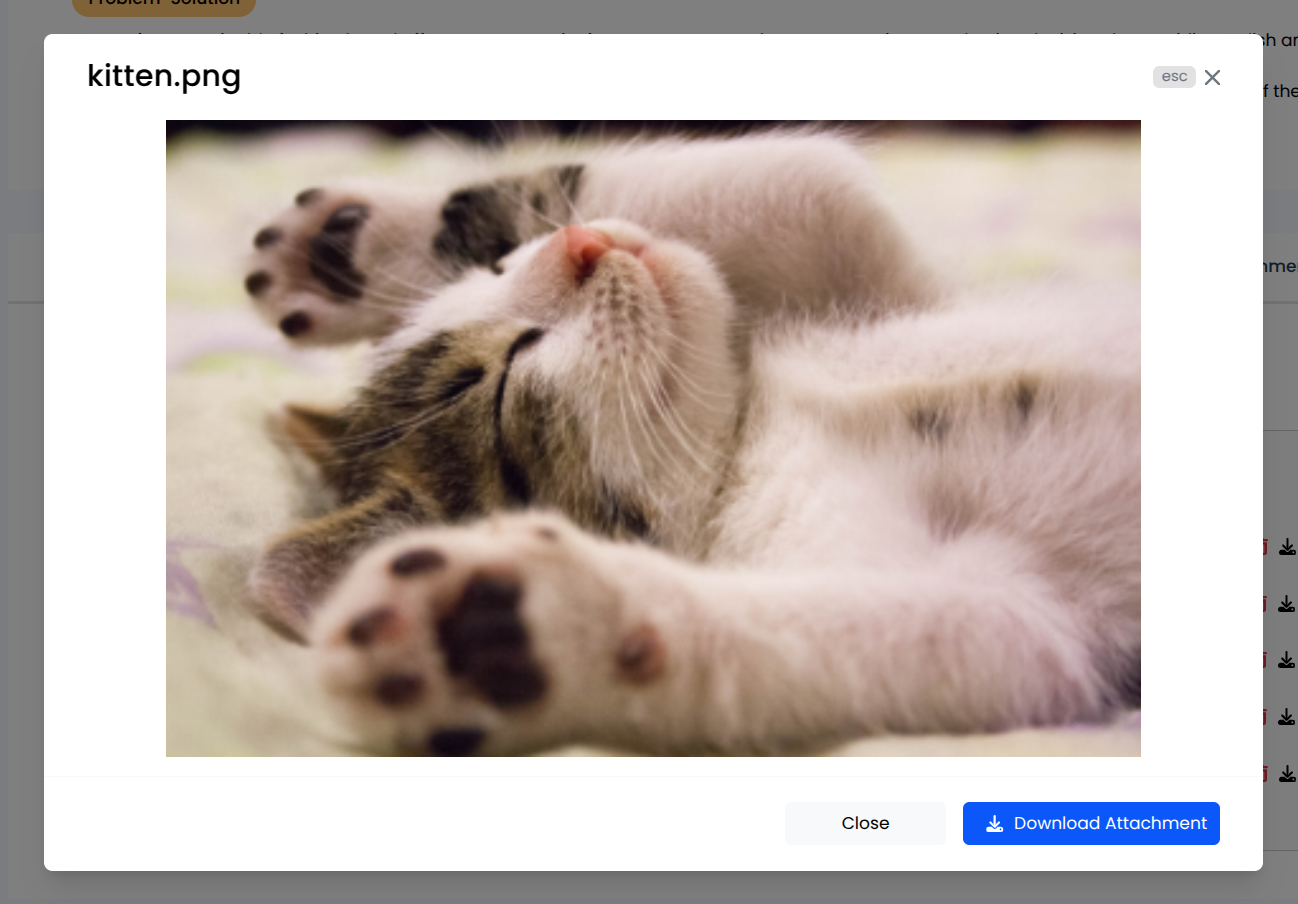
Clicking on the file name opens a modal with the uploaded content which can also be downloaded.
Files that arrive from Box
On a grant connected to Box, most attachments arrive on their own rather than being uploaded here. Each file in the Box folder is filed against a form question by an attachment routing rule, matched on the file name or its folder path.
Two things follow from that. A file that matches no rule still syncs, but arrives attached to no question, and document checks are configured per question, so it will not be checked against the requirements you expect. And you do not have to wait for the next scheduled sync: Pull in the application header fetches that folder's latest files immediately.
See Working with Box.